
Loading...
> docs/connection-issues
Connection Issues
4 min read
Troubleshooting
Last updated March 12, 2026
Diagnosing Connection Problems
If you cannot reach your OpenClaw instance through the web UI, a chat channel, or SSH, this page helps you narrow down the cause.
Web UI Not Loading
If the browser shows a connection error when accessing your instance's web UI:
Step 1: Check instance status
Open your ClawHosters dashboard. If the instance shows anything other than "Running," the web UI will not be accessible. See Instance Won't Start if the instance is not running.
Step 2: Wait for startup
After starting or restarting, the OpenClaw gateway needs up to 60 seconds to become responsive. If you just started the instance, wait a minute and try again.
Step 3: Verify the URL
Make sure you are using the Gateway URL shown in your instance dashboard. The URL includes an authentication token that must match your instance.
Step 4: Check your network
Some corporate or public networks block certain connections. Try from a different network or use a mobile hotspot to test.
Telegram Channel Not Responding
If your Telegram bot paired successfully but stopped responding:
Common causes:
- Instance is not running. Check the dashboard. If the instance is paused or stopped, the Telegram bot won't respond.
- Instance restarted. After a restart, the connection resumes automatically. Give it 1-2 minutes.
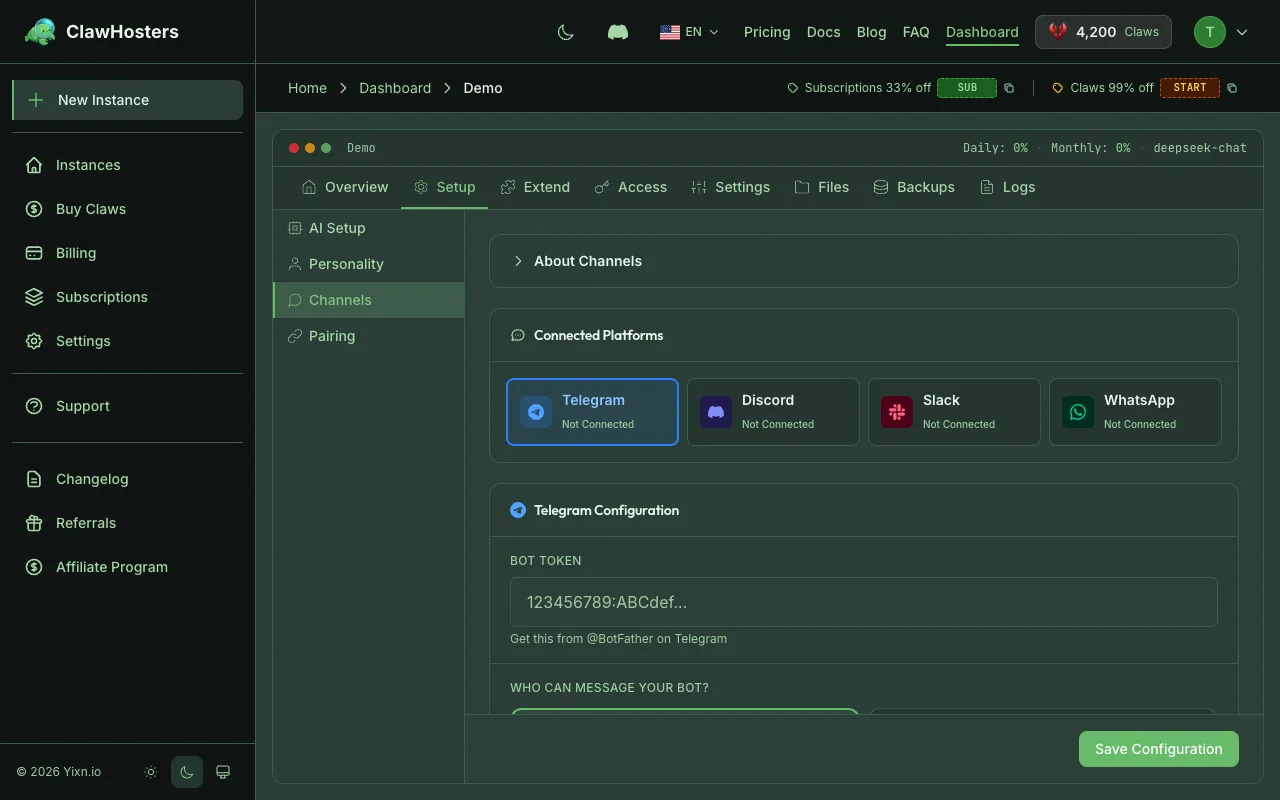
- Pairing expired. If the instance was rebuilt or restored from snapshot, you may need to re-pair the channel. Go to Channels in your dashboard and check the pairing status.
What to try:
- Check instance status in the dashboard
- If running, wait 2 minutes for the connection to stabilize
- If the channel shows "Unpaired," re-pair it using a new pairing code
- If still not working, restart the instance from the dashboard
WhatsApp Channel Not Responding
WhatsApp channel issues follow the same pattern as Telegram. Check instance status first, then pairing status.
Additional WhatsApp considerations:
- WhatsApp has rate limits that can delay messages during high volume
- WhatsApp pairing uses a QR code flow, which requires scanning from your phone
- If the QR code expired, generate a new one from the dashboard
SSH Connection Refused
If you enabled SSH access but cannot connect:
Step 1: Verify SSH is enabled
Check your instance dashboard. SSH access must be explicitly enabled, and your public key must be uploaded.
Step 2: Check the IP address
After a pause/resume cycle or rebuild, your instance gets a new IP address. Use the current IP shown in the dashboard, not a previously saved one.
Note on SSH host keys: When an instance gets a new IP address, you may see an SSH warning about a changed host key. This is expected because Hetzner recycles IP addresses from deleted servers. Remove the old entry from your ~/.ssh/known_hosts file or use ssh -o UserKnownHostsFile=/dev/null -o StrictHostKeyChecking=no to connect.
Step 3: Check for IP bans
If you entered the wrong SSH key or made multiple failed login attempts, your IP may be temporarily banned. Brute force protection automatically blocks IPs after repeated failed attempts.
Wait for the ban to expire and try again, or try from a different IP address.
Step 4: Check your key
Make sure you are using the correct private key that corresponds to the public key you uploaded:
bash
ssh -i ~/.ssh/your-key root@[instance-ip]
Connection Was Working, Now Fails
If your connection was previously working:
- Check dashboard. Instance may have been paused due to balance depletion.
- IP changed. After pause/resume, the IP changes. Update your bookmarks and SSH config.
- Rebuild happened. If the instance was rebuilt, all connections (Telegram, WhatsApp) need re-pairing.
- Network change on your end. If you switched networks or your ISP changed your IP, try again.
Related Docs
- Instance Won't Start. When the instance itself is not running.
- Troubleshooting Common Issues. General troubleshooting steps.
- SSH Access to Your Instance. SSH setup and connection details.
- Start, Stop, and Restart. Instance power management.
Related Documentation
Troubleshooting Common Issues
Before You Start Most issues resolve themselves within a few minutes. Provisioning takes about 6...
Authentication and Access Control
How Authentication Works in ClawHosters ClawHosters uses different authentication methods depend...
SSH Access to Your Instance
Overview SSH access gives you a direct terminal connection to the underlying VPS that runs your ...
