
Loading...
> docs/whatsapp
Connecting WhatsApp
5 min read
Channels
Last updated March 12, 2026
What This Connects
WhatsApp is one of the messaging platforms your OpenClaw instance supports. Once connected, people can message your AI assistant on WhatsApp and get responses powered by your OpenClaw instance.
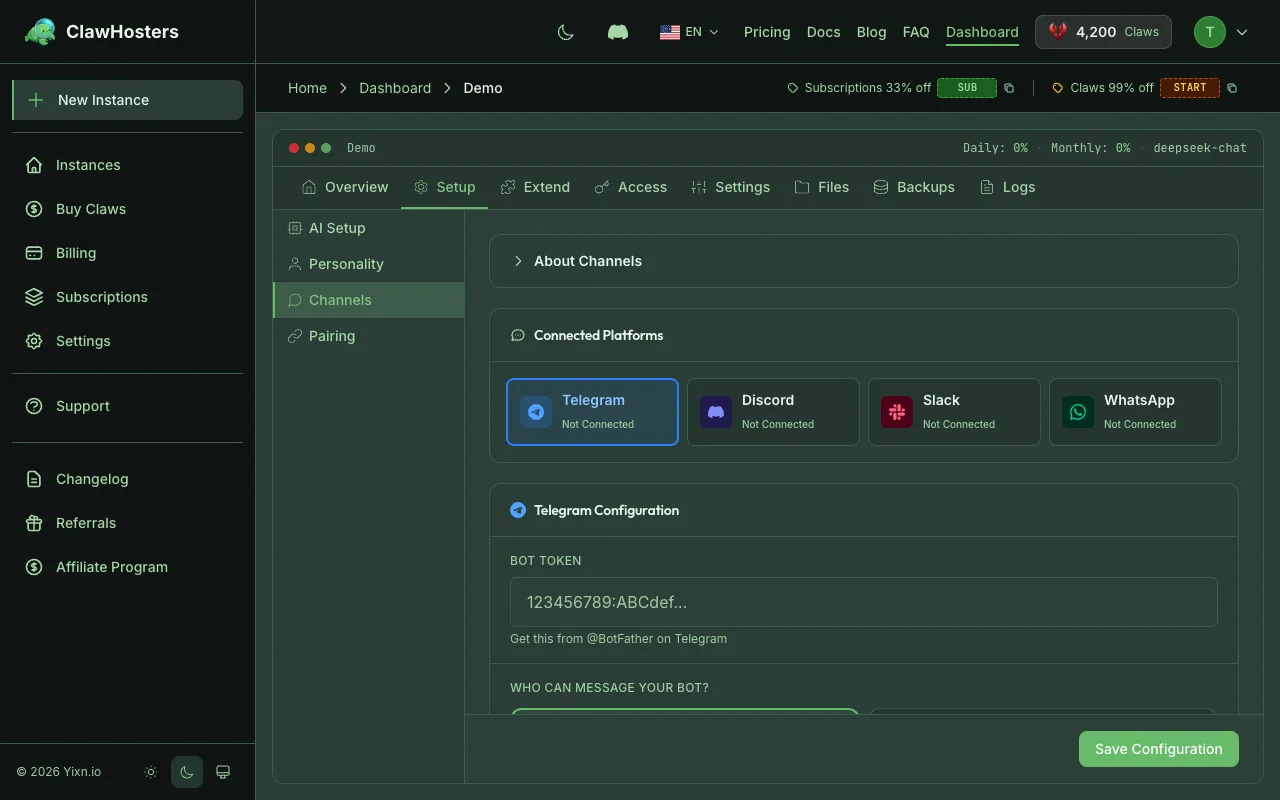
Unlike Telegram (which uses a bot token), WhatsApp connects via QR code pairing through the OpenClaw web interface. You need a dedicated phone number with WhatsApp installed on it.
Prerequisites
Before connecting WhatsApp, make sure you have:
- A running OpenClaw instance on ClawHosters (WhatsApp can only be configured after deployment)
- A dedicated phone number with a regular WhatsApp account (do not use your personal number)
- WhatsApp installed and active on a phone with that number
Warning: Do not use your personal phone number. Use a dedicated number for your AI assistant. The number will be linked to your OpenClaw instance via WhatsApp's linked devices feature. WhatsApp supports up to 4 linked devices per number, but using a dedicated number avoids conflicts with personal use.
Step 1: Enable WhatsApp on Your Instance
WhatsApp requires your instance to be running before you can configure it. If your instance isn't deployed yet, complete the deployment first.
- Go to your instance dashboard on ClawHosters
- Open Settings
- Switch to the WhatsApp tab
- Click Enable WhatsApp
- Choose a DM policy:
- Pairing required (recommended): Users must be approved before they can chat. This lets you control who talks to your AI.
- Allow all: Anyone who messages your WhatsApp number can chat with the AI directly.
- Save the configuration
Your instance restarts with WhatsApp support enabled.
Step 2: Connect via QR Code
After enabling WhatsApp in the settings, the connection happens through the OpenClaw web interface on your instance, not through the ClawHosters dashboard.
- Open your instance's OpenClaw web interface (the Gateway URL shown on your instance dashboard)
- Navigate to the WhatsApp connection section
- A QR code appears on screen
- Open WhatsApp on the phone with your dedicated number
- Go to Settings > Linked Devices > Link a Device
- Scan the QR code with your phone
The connection is established. Your OpenClaw instance can now receive and respond to WhatsApp messages through that number.
Info: The QR code pairing connects WhatsApp Web to your OpenClaw instance. This is the same mechanism WhatsApp uses for its desktop and web apps. Your phone needs to stay connected to the internet for the link to remain active.
How It Works Behind the Scenes
When you enable WhatsApp in the ClawHosters settings, the instance configuration is updated via SSH. The actual WhatsApp connection is handled by OpenClaw's built-in WhatsApp adapter, which uses the Baileys library (an open-source WhatsApp Web protocol implementation).
The QR code pairing links your WhatsApp account to the OpenClaw container running on your instance. Messages arrive through WhatsApp's servers to your phone, which forwards them to the linked OpenClaw instance for processing.
No WhatsApp Business account or Business API is required. OpenClaw uses the standard WhatsApp Web linked device mechanism, the same technology behind WhatsApp's desktop and web apps. A regular WhatsApp account is all you need.
Changing the DM Policy
If you want to switch between pairing mode and open mode after the initial setup:
- Go to your instance Settings
- Switch to the WhatsApp tab
- Change the DM policy
- Save the changes
The instance reconfigures. Existing approved users remain approved if you switch to pairing mode.
Disconnecting WhatsApp
To disconnect WhatsApp from your instance:
- On your phone, open WhatsApp
- Go to Settings > Linked Devices
- Find the OpenClaw session and tap Log out
This removes the connection. Your instance keeps running but no longer receives WhatsApp messages. You can reconnect at any time by scanning a new QR code.
Troubleshooting
QR code does not appear
- Make sure your instance status is Running. A paused or stopped instance cannot display the QR code.
- Try refreshing the OpenClaw web interface page.
- Check that WhatsApp is enabled in the instance settings on ClawHosters.
WhatsApp disconnects frequently
- The phone linked to WhatsApp must stay connected to the internet. If the phone goes offline for an extended period, WhatsApp drops the linked session.
- Check that the phone has a stable internet connection (Wi-Fi or mobile data).
- Re-scan the QR code to re-establish the link.
Messages are not being delivered
- Verify your instance is in Running status
- Check that the WhatsApp linked session is still active (Settings > Linked Devices on your phone)
- If using pairing mode, confirm the sender has been approved
- Restart the instance if messages were working before and suddenly stopped
"WhatsApp can only be configured after your instance is running"
- This means your instance isn't deployed yet or is in a non-running state (paused, stopped, deploying)
- Wait for deployment to complete, or resume a paused instance first
Differences from Telegram
| Feature | Telegram | |
|---|---|---|
| Setup method | Bot token from BotFather | QR code pairing |
| Phone required | No | Yes (dedicated number) |
| Configuration timing | Before or after deployment | Only after deployment |
| Pairing approval | Via ClawHosters dashboard | Via OpenClaw web interface |
| Multiple users | Each user gets a pairing code | Users message the WhatsApp number directly |
Related Docs
- Connecting Telegram. Alternative channel with bot token setup
- Quickstart Guide. Full setup walkthrough
- Creating Your First Instance. Instance creation wizard details
Related Documentation
Connecting Telegram
What This Connects Telegram is one of the messaging platforms your OpenClaw instance can use to ...
Multi-channel Setup
Using Multiple Channels at Once Your OpenClaw instance supports connecting multiple channels sim...
What is OpenClaw?
An Open-Source AI Assistant You Can Self-Host OpenClaw is an open-source framework for running y...
