
Loading...
> docs/backup
Backup Add-on
4 min read
Addons
Last updated March 05, 2026
What the Backup Add-on Does
The backup add-on creates regular snapshots of your OpenClaw instance's data. If something goes wrong (accidental configuration changes, data corruption, or failed updates), you can restore your instance to a previous state.
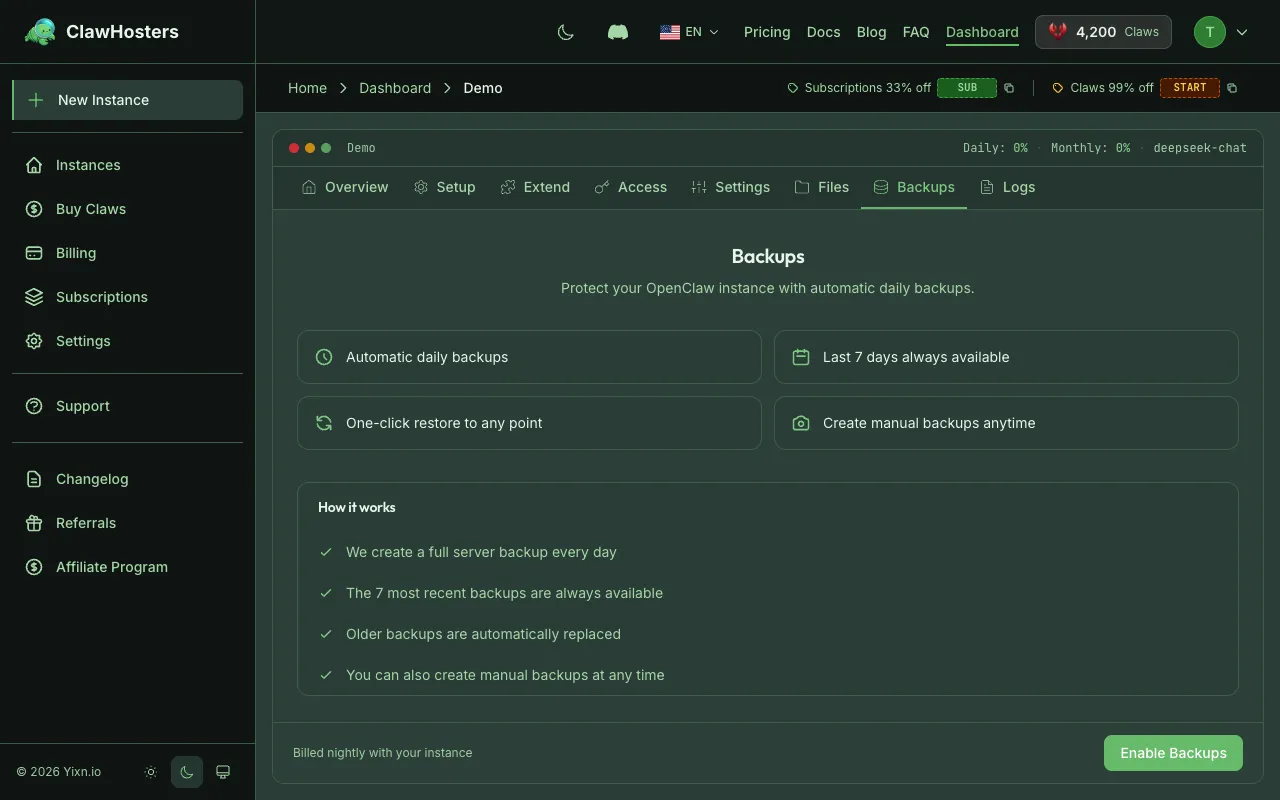
Without this add-on, there is no automated backup. If you delete data or misconfigure your instance, the only recovery option is a full rebuild, which wipes everything.
What Gets Backed Up
Backups capture the full state of your instance's container:
| Included | Details |
|---|---|
| Configuration | LLM settings, messenger tokens, API keys, custom settings |
| Chat history | All conversation data stored on the instance |
| Knowledge base | Uploaded documents and indexed embeddings (if embedding add-on is active) |
| Custom modifications | Packages installed via SSH, custom scripts, modified configs |
| Skills and plugins | Any installed or configured skills |
What Is Not Backed Up
Some elements exist outside the container and are not part of the backup:
| Not Included | Reason |
|---|---|
| Billing data | Managed by ClawHosters, not stored on the instance |
| Add-on subscriptions | Subscription state lives in ClawHosters, not the container |
| Server-level config | Firewall rules, SSH host keys. These belong to the VPS, not the container |
Pricing
The backup add-on costs 18% of your instance tier's monthly price. There are no separate backup packs or tiers to choose from. You simply enable it, and the price scales with your instance.
| Instance Tier | Monthly Tier Price | Backup Add-on Cost |
|---|---|---|
| Budget | €19/mo | ~€3.42/mo |
| Balanced | €35/mo | ~€6.30/mo |
| Pro | €59/mo | ~€10.62/mo |
All backups include daily automated snapshots and 14 days of retention, regardless of your tier.
Setting Up the Backup Add-on
- Open your instance in the ClawHosters dashboard
- Go to Add-ons > Backup
- Enable the backup add-on
- Confirm your subscription
Backups begin automatically within 24 hours of subscribing. The first backup captures the current state of your instance.
Backup Schedule
Automated backups run once per day during a maintenance window (typically between 02:00 and 05:00 UTC). The exact time varies to distribute load across the infrastructure.
Each backup is a full snapshot. There are no incremental backups. Every backup contains the complete container state.
Retention Policy
All backups are retained for 14 days. When a backup exceeds the retention period, it is automatically deleted.
Restoring from a Backup
- Go to Add-ons > Backup in your instance dashboard
- Browse the list of available backups (newest first)
- Select the backup you want to restore
- Read the warning. Restoring overwrites the current state
- Type your instance name to confirm
- Click Restore
The restore process takes a few minutes depending on the backup size. Your instance is briefly unavailable during the restore.
What Happens During a Restore
- Your instance is stopped
- The current container state is replaced with the backup
- The instance restarts with the restored data
- Health checks run to verify the instance is operational
After the restore, your instance is back to the exact state it was in when the backup was created. Any changes made after that backup are lost.
Important Warnings
- Restoring overwrites everything. All data and configuration created after the backup point is permanently lost.
- Restoring does not roll back billing. Charges for the time between the backup and the restore still apply.
- Messenger connections may need re-authentication. Some messenger platforms invalidate tokens when the instance state changes. You may need to reconnect Telegram, WhatsApp, or other channels after a restore.
- The restore itself is not reversible. Once you confirm, there is no undo.
Managing Your Subscription
Enabling
Enable the backup add-on from the add-ons page. The cost is automatically calculated based on your instance tier.
Disabling
Disable the backup add-on from the add-ons page. Existing backups are retained for 7 days after disabling. After that, all backup data is permanently deleted.
Tier Changes
If you upgrade or downgrade your instance tier, the backup add-on cost adjusts automatically to 18% of the new tier price.
Troubleshooting
No backups are showing
- Verify the backup add-on is active on the add-ons page
- The first backup runs within 24 hours of subscribing, so check back later
- If the instance was in an error or stopped state during the backup window, the backup may have been skipped
Restore failed
- Check that your instance has enough disk space for the restore
- Verify the instance is in a state that allows restoring (running, stopped, or error)
- If the backup data is corrupted, try restoring from a different backup point
- Contact support if restores repeatedly fail
"Backup add-on not available" error
- The backup add-on requires an active instance
- Instances that are provisioning, deploying, or deleted cannot use the backup add-on
Related Documentation
- Rebuilding an Instance: Factory reset without backup (wipes everything)
- Deleting an Instance: Permanent deletion with no recovery
- Instance Overview: Instance statuses and lifecycle
- Billing Overview: How add-on billing works
Related Documentation
Config Backups
What Config Backups Are Config backups are automatic snapshots of your instance's openclaw.json ...
Best Practices for Production Use
Running OpenClaw in Production Once your OpenClaw instance is running and connected to your pref...
Instance Overview
What Is an Instance? An instance is a dedicated OpenClaw server running on ClawHosters. It is yo...
