
Loading...
> docs/resource-limits
Understanding Resource Limits
4 min read
Instances
Last updated March 12, 2026
How Resources Are Allocated
Each ClawHosters instance runs on a dedicated Hetzner Cloud VPS. The tier you choose determines how much CPU, memory, and storage your instance gets. These resources are not shared with other customers.
The OpenClaw container runs inside Docker with enforced memory limits. If the container tries to use more memory than allocated, Docker will kill and restart it.
Resources by Tier
| Resource | Budget | Balanced | Pro |
|---|---|---|---|
| vCPU | 2 cores | 4 cores | 8 cores |
| RAM | 4 GB | 8 GB | 16 GB |
| Storage | 40 GB | 80 GB | 160 GB |
What Each Resource Affects
CPU (vCPU)
CPU determines how fast your instance processes requests. More cores help when:
- Multiple users send messages simultaneously
- The instance runs compute-heavy skills or plugins
- RAG document indexing is in progress (if embedding add-on is active)
For most single-user or small-team setups, 2 cores (Budget) is enough. If you notice slow responses under load, upgrading to Balanced or Pro gives more headroom.
Memory (RAM)
Memory affects how much data the instance can hold in active memory at once. This includes:
- The Node.js runtime and OpenClaw process
- Active conversation contexts
- Loaded skills and plugins
- Temporary data from document processing
If the OpenClaw process uses too much memory, the system may restart the container automatically. You will see a brief downtime (usually under 30 seconds) when this happens.
Storage
Storage covers everything stored on disk:
- The OpenClaw Docker image itself (~2 GB)
- Conversation history and logs
- Uploaded documents and knowledge base files
- Installed packages (if you SSH in and install additional tools)
- Backups stored locally before upload (if backup add-on is active)
Storage is persistent. It survives container restarts and reboots. It is only wiped during a rebuild.
Choosing the Right Tier
| Use Case | Recommended Tier |
|---|---|
| Personal assistant, single user | Budget |
| Small team (2-5 users), moderate load | Balanced |
| Production deployment, many concurrent users | Pro |
| RAG with large document collections | Balanced or Pro |
| Running multiple skills simultaneously | Pro |
Start with Budget if you are unsure. You can upgrade your tier later without losing data.
What Happens When You Hit Limits
Memory Limit Exceeded
If the container uses too much memory:
- The system terminates the container process
- The container restarts automatically
- The instance is unavailable for 10-30 seconds during restart
- Active conversations in progress may lose their last message
Check if this is happening by looking at your instance's monitoring page. Frequent restarts usually mean you need a higher tier.
Storage Full
If the disk fills up:
- New messages may fail to save
- Document uploads will be rejected
- Logs stop writing, making debugging harder
- The instance may become unresponsive
Clean up unused files via SSH, or upgrade to a tier with more storage.
CPU Saturated
When all CPU cores are busy:
- Response times increase
- Messages queue up instead of processing immediately
- The instance stays functional but slow
This is usually temporary during peak usage. If it happens regularly, upgrade to a tier with more cores.
Monitoring Your Usage
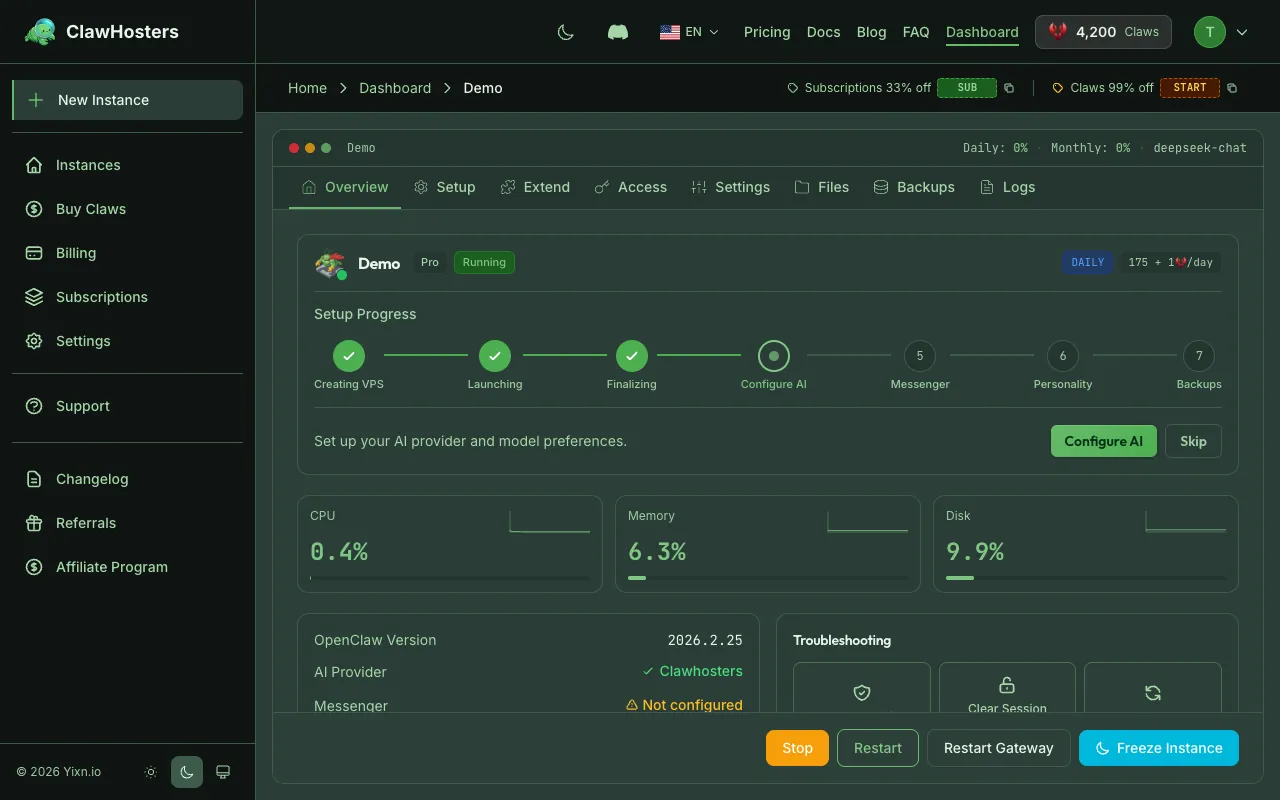
The instance monitoring page in your dashboard shows current resource usage:
- CPU usage percentage
- Memory usage (current vs limit)
- Storage used vs available
Check these metrics periodically to see if your tier fits your workload. If any resource consistently runs above 80%, consider upgrading.
Upgrading and Downgrading
Tier changes are only available for monthly subscription instances. Daily-billed instances cannot change tiers. If you need a different tier on daily billing, create a new instance on the desired tier and delete the old one.
For monthly subscriptions, the change takes effect at the start of the next billing period. Upgrading provisions a new server with more resources and migrates your data. Downgrading works the same way but with fewer resources. Neither operation loses your data.
Related Documentation
- Instance Overview. General instance management
- Instance Monitoring. Checking resource usage
- Choosing Your Tier. Tier comparison and pricing
- Start, Stop, and Restart. Managing instance state
Related Documentation
Scaling and Performance
Getting the Most Out of Your Instance This page covers how to monitor resource usage, recognize ...
Choosing the Right Tier
Available Tiers ClawHosters offers three server tiers. Each tier runs the same OpenClaw software...
Best Practices for Production Use
Running OpenClaw in Production Once your OpenClaw instance is running and connected to your pref...
