
Loading...
> docs/common-issues
Troubleshooting Common Issues
9 min read
Troubleshooting
Last updated March 12, 2026
Before You Start
Most issues resolve themselves within a few minutes. Provisioning takes about 60 seconds, and deployment adds another 30-60 seconds on top. If your instance is stuck in "Provisioning" or "Deploying" for less than two minutes, give it time.
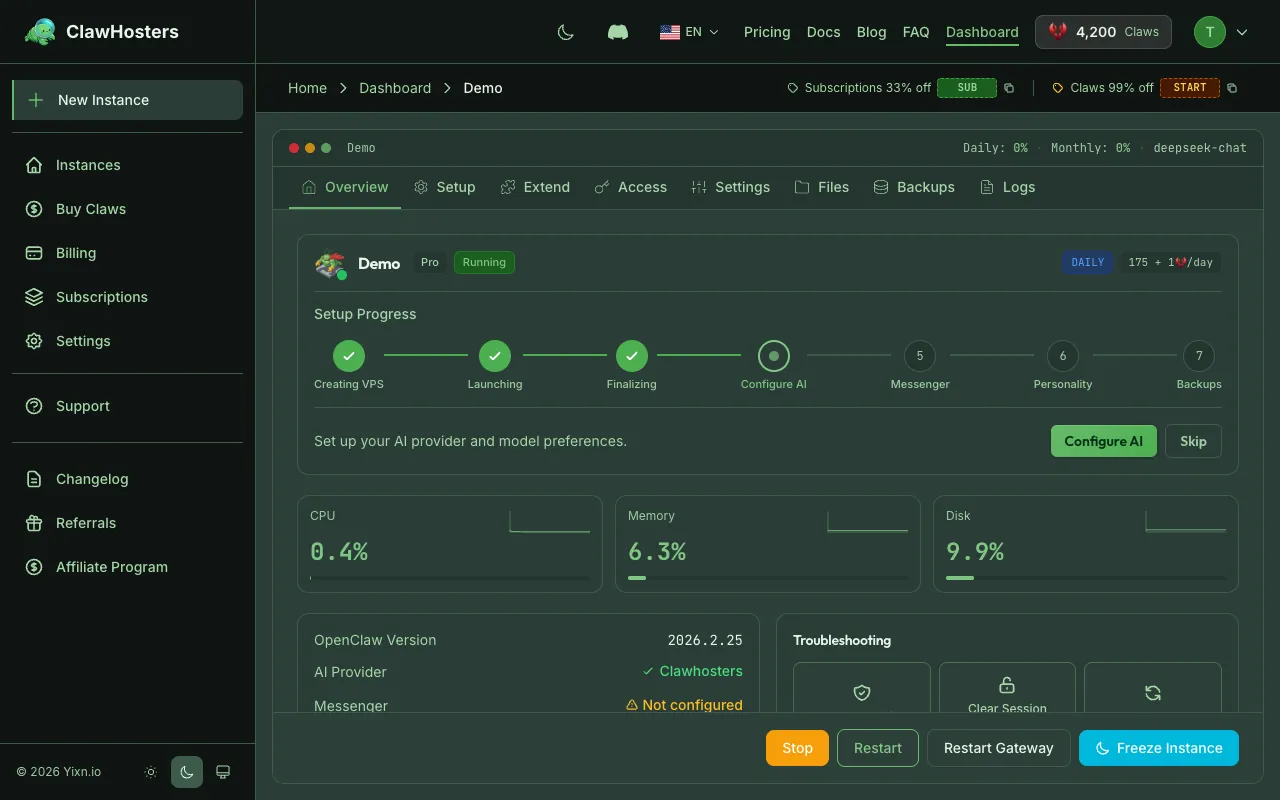
If something still looks wrong after that, check the sections below.
Instance Stuck in "Provisioning"
Your instance shows "Provisioning" but nothing happens.
What is happening: A new cloud server is being created for your instance. This normally takes 30-60 seconds.
What to check:
- Wait at least two minutes before taking action. The system polls automatically.
- Refresh the dashboard page. The status updates via live polling, but a manual refresh can help.
- If provisioning takes longer than five minutes, something may have gone wrong on the infrastructure side. Use the "Retry" button on the instance dashboard if available.
If retry does not work: Contact support through the dashboard. Include your instance name and the approximate time you started provisioning.
Instance Shows "Deploy Failed"
Deployment completed but the instance could not start properly.
What is happening: The system created the server, uploaded your configuration, and started the Docker container, but the health check did not pass within the 2-minute timeout (120 seconds). The deployment is then marked as failed.
Common causes:
- Temporary infrastructure issue during container startup
- Configuration conflict from a previous session
What to do:
Deployments do not retry automatically. You need to manually trigger a new attempt:
- Open the instance dashboard
- Click "Retry Deployment"
- Wait for the new deployment to complete (about 60 seconds)
If retry fails again, contact support. The underlying server logs may contain more details.
Instance Shows "Pending Configuration"
Your instance is running but marked as "Pending Configuration."
What is happening: The server infrastructure is ready and the Docker container is running, but no LLM API key has been configured yet. Without an API key, the AI assistant cannot process messages.
What to do:
- Open the instance dashboard
- Click "Configure LLM" or go to the LLM settings section
- Enter your API key for the provider you want to use (Anthropic, OpenAI, Google/Gemini, DeepSeek, OpenRouter, Mistral, or Groq)
- Save the configuration
The instance will transition to "Running" once a valid API key is saved.
Instance Paused (Low Balance)
Your instance stopped and shows "Paused."
What is happening: Your Claws balance dropped below zero after the daily billing deduction (processed at 01:00 Berlin time (CET/CEST)). The system automatically:
- Created a snapshot of your instance (preserving all data and configuration)
- Shut down the server (stopping all billing)
Your data is safe in the snapshot. No data is lost.
What to do:
- Add more Claws to your account (Dashboard → Add Funds)
- Return to the instance dashboard
- Click "Resume"
- The system restores your snapshot to a new server (takes about 60 seconds)
Important: Paused instances have a 3-day grace period. After 3 days without resuming, the snapshot and instance data are permanently deleted. You will receive email warnings before this happens.
Daily Claws costs by tier:
| Tier | Daily Cost |
|---|---|
| Budget | 60 Claws |
| Balanced | 105 Claws |
| Pro | 175 Claws |
Tip: You receive low-balance warning emails when your balance falls below 3, 2, and 1 day of operating costs.
LLM API Key Not Working
You entered an API key but the instance reports an error or messages are not being processed.
Check the key format:
| Provider | Expected Format |
|---|---|
| Anthropic | Starts with sk-ant- |
| OpenAI | Starts with sk- |
| OpenRouter | Starts with sk-or- |
| Google, DeepSeek | Varies by provider. Copy directly from provider dashboard. |
Common causes:
- Typo in the key. Copy-paste the key directly from your provider dashboard. Avoid manual typing.
- Key revoked. Check your provider dashboard to confirm the key is still active.
- Insufficient permissions. Some providers issue keys with limited scopes. Make sure your key has model access permissions.
- Account issue. Your provider account may have billing issues or usage limits. Check the provider dashboard.
What to do:
- Open the instance dashboard → LLM Settings
- Delete the current key and paste a fresh one from your provider
- Save and wait a few seconds for the instance to reconnect
Telegram Bot Not Responding
You connected a Telegram bot but it does not reply to messages.
Check the basics:
- Bot token valid? Open Telegram, message @BotFather, and use
/mybotsto verify the bot exists and the token matches. - Token format correct? Telegram tokens look like
123456789:ABCdefGHIjklMNOpqrsTUVwxyz. Check for missing characters. - Bot started? Open a chat with your bot in Telegram and send
/start. Some bots require this initial command. - Instance running? Check that your instance status is "Running" (not paused, stopped, or pending configuration).
Pairing mode issues:
If your instance uses pairing mode (the default), the bot only responds to users who have been approved. The instance owner must pair with the bot first. Check the instance dashboard for pairing instructions.
WhatsApp Connection Issues
WhatsApp connects through a QR code pairing process in the OpenClaw web interface, not through an API token.
Common issues:
- QR code expired. QR codes expire after about 60 seconds. Refresh and scan again quickly.
- Already connected elsewhere. WhatsApp allows only one linked device per phone number for the web interface. Disconnect the old session first.
- Instance not running. The instance must be in "Running" status before you can initiate WhatsApp pairing.
Discord Bot Not Responding
You connected a Discord bot but it does not reply to messages.
Check the basics:
- Bot token valid? Go to the Discord Developer Portal, select your application, and verify the bot token is still active.
- Bot invited to server? Make sure the bot has been invited to your Discord server with the correct permissions (Send Messages, Read Message History).
- Correct channel? The bot may only respond in channels where it has permission to read and send messages.
- Instance running? Check that your instance status is "Running" in the ClawHosters dashboard.
If the bot was working before:
- Check if the bot token was regenerated in the Discord Developer Portal. A regenerated token invalidates the old one.
- Verify the instance was not rebuilt or restored from snapshot, which may require re-entering the bot token.
Slack Bot Not Responding
Your Slack integration is connected but the bot does not reply.
Check the basics:
- App installed? Verify the ClawHosters Slack app is still installed in your workspace (Slack Settings, Manage Apps).
- Bot in channel? The bot must be invited to the channel where you expect it to respond. Use
/invite @botnamein the channel. - Instance running? Check that your instance status is "Running" in the ClawHosters dashboard.
- OAuth still valid? If your workspace admin revoked the app's permissions, you will need to re-authorize through the dashboard.
Instance Using Too Much Memory
Your instance keeps restarting or becomes unresponsive.
What is happening: Each instance has a memory limit based on your tier. When your instance exceeds this limit, it restarts automatically. This causes a brief interruption (a few seconds) but no data loss.
What to do:
- Check resource usage in the instance dashboard (CPU, memory, storage indicators)
- If memory usage is consistently near the limit, consider upgrading to a higher tier
- Large file operations or heavy computation within the AI assistant can spike memory temporarily
Cannot Delete Monthly Instance
You are trying to delete an instance but the button is disabled or returns an error.
For monthly subscription instances:
You must cancel the subscription before deleting the instance. Active subscriptions cannot be deleted because they represent an ongoing billing commitment.
- Go to the instance dashboard
- Cancel the subscription first
- Once the subscription period ends or is confirmed cancelled, the delete option becomes available
For daily billing instances:
Daily billing instances can be deleted at any time. If the delete button is not working, check that the instance is not currently in a transitioning state (provisioning, deploying, or deleting).
Gateway Web Interface Not Loading
You are trying to access the OpenClaw web interface but the page does not load.
Check the basics:
- Instance running? The instance must be in "Running" status.
- Correct URL? Use the Gateway URL shown in the instance dashboard. It includes an authentication token.
- Token valid? Gateway tokens are generated during deployment. If the token is missing or expired, you can regenerate it from the instance dashboard.
If the URL loads but shows an error:
- The OpenClaw container may be restarting. Wait 30 seconds and try again.
- Check resource usage. If memory is maxed out, the container may be in a restart loop.
Billing Discrepancy
Your Claws balance does not match what you expected.
How daily billing works:
- Billing runs at 01:00 Berlin time (CET/CEST)
- The charge is prorated based on how many hours the instance ran that day
- Setup fees are charged once when creating a new instance
- Paused instances do not incur charges
Setup fees by tier:
| Tier | Setup Fee |
|---|---|
| Budget | 150 Claws |
| Balanced | 300 Claws |
| Pro | 450 Claws |
What to check:
- Dashboard → Billing → Transaction History shows all charges with timestamps
- Check if you have multiple instances running (each incurs its own daily cost)
- Verify your tier. Higher tiers cost more per day.
Still Need Help?
If none of the above resolves your issue:
- Open the ClawHosters dashboard
- Go to Support → Create Ticket
- Include: your instance name, what you expected to happen, and what actually happened
The support team typically responds within 24 hours on business days.
Related Documentation
- Instance Overview. How instances work and their lifecycle.
- Billing Overview. How billing and payments work.
- Understanding Your Invoice. Invoice formats, tax information, and download instructions.
- Security Overview. Infrastructure and data protection.
- Payment Methods. Payment failures, refunds, and accepted methods.
- Cancellation and Refunds. Cancelling subscriptions, pausing daily billing, and refunds.
- Choosing the Right Tier. Tier comparison and resource limits.
Related Documentation
Instance Overview
What Is an Instance? An instance is a dedicated OpenClaw server running on ClawHosters. It is yo...
Instance Won't Start
When Your Instance Refuses to Start If your instance is stuck or fails to start after pressing "...
Creating Your First Instance
What You'll Set Up An instance is a dedicated server running OpenClaw, provisioned exclusively f...
