
Loading...
> docs/web-widget
Using the Web UI
3 min read
Channels
Last updated March 05, 2026
The Built-In Web Interface
Every OpenClaw instance includes a web-based chat interface accessible through your browser. This is the default way to interact with your instance, and it works without any additional setup or channel pairing.
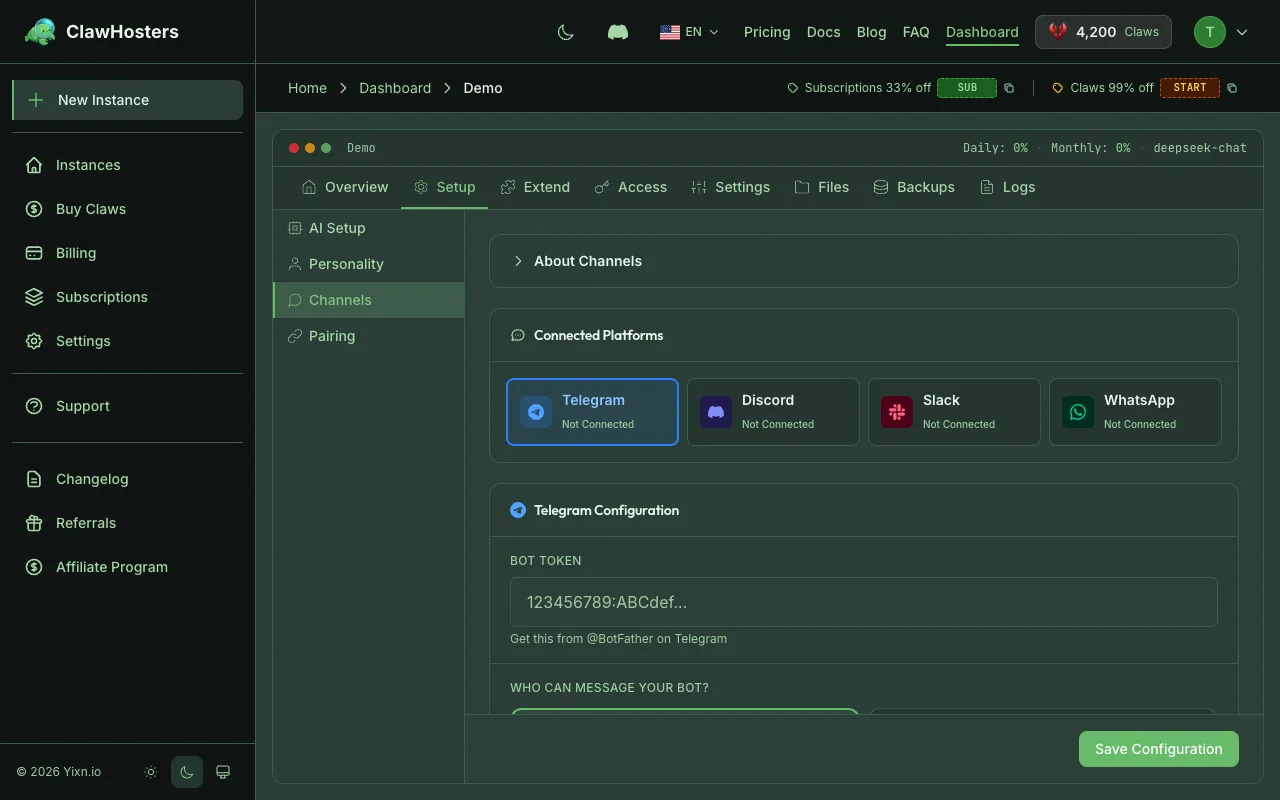
Accessing the Web UI
After your instance is running, open a browser and navigate to your instance's subdomain URL:
text
https://[your-subdomain].clawhosters.com
You can find this URL on your instance dashboard in ClawHosters. Each instance gets a unique subdomain assigned during creation.
Important: Always use https://. All traffic goes through Traefik on the ClawHosters production server with TLS. Direct IP access is blocked for security.
Authentication
The web UI requires your gateway token to access. You set this token during instance creation. If you need to find it:
- Open your instance dashboard on ClawHosters
- Look for the gateway token in the instance details
- Enter it when the web UI prompts for authentication
The token authenticates you for the current browser session. You don't need to enter it again until the session expires or the instance restarts.
What You Can Do in the Web UI
The web interface provides the full OpenClaw experience:
| Feature | Description |
|---|---|
| Chat conversations | Send messages and receive AI responses |
| File uploads | Share files with the AI for analysis or processing |
| Conversation history | View and continue previous conversations |
| Settings | Adjust instance behavior and preferences |
| Skill management | View installed skills and their status |
Web UI vs Chat Channels
The web UI and chat channels (Telegram, WhatsApp, Discord, Slack) connect to the same OpenClaw instance. The main differences:
| Aspect | Web UI | Chat Channels |
|---|---|---|
| Setup required | None, works immediately | Pairing needed |
| Authentication | Gateway token | Channel-specific |
| File handling | Direct upload in browser | Send as message attachment |
| Rich formatting | Full markdown rendering | Depends on the channel |
| Availability | Requires browser + IP access | Available from any device with the app |
| Notifications | None (browser tab) | Push notifications |
Choose the web UI when you want the full interface experience. Choose a chat channel when you want quick access from your phone or push notifications.
Browser Compatibility
The web UI works in any modern browser:
- Chrome, Firefox, Safari, Edge (latest versions)
- Mobile browsers work but the interface is optimized for desktop
- WebSocket support is required. Some corporate proxies may block this
Connection Issues
If the web UI doesn't load:
- Check instance status. The instance must show "Running" in the dashboard
- Wait after startup. The gateway needs up to 60 seconds to become responsive
- Verify the URL. Make sure you are using
https://[your-subdomain].clawhosters.com - Check your network. Some corporate networks or firewalls may block certain traffic
For detailed troubleshooting, see Connection Issues.
Session Behavior
- Sessions persist across page refreshes within the same browser
- Closing the tab doesn't end the session immediately
- Clearing browser cookies will require re-authentication
- Each browser/device maintains its own session
Related Docs
- Connecting Telegram. Set up Telegram as a chat channel
- Connecting WhatsApp. Set up WhatsApp as a chat channel
- Multi-channel Setup. Using multiple channels at once
- Connection Issues. Troubleshooting connectivity problems
Related Documentation
Authentication and Access Control
How Authentication Works in ClawHosters ClawHosters uses different authentication methods depend...
Multi-channel Setup
Using Multiple Channels at Once Your OpenClaw instance supports connecting multiple channels sim...
OpenClaw Configuration Reference
What openclaw.json Does The openclaw.json file is the main configuration file for your OpenClaw ...
