
Loading...
> docs/multi-channel
Multi-channel Setup
4 min read
Channels
Last updated March 05, 2026
Using Multiple Channels at Once
Your OpenClaw instance supports connecting multiple channels simultaneously. You can use the web UI, Telegram, WhatsApp, Discord, and Slack all at the same time, and they all talk to the same AI instance.
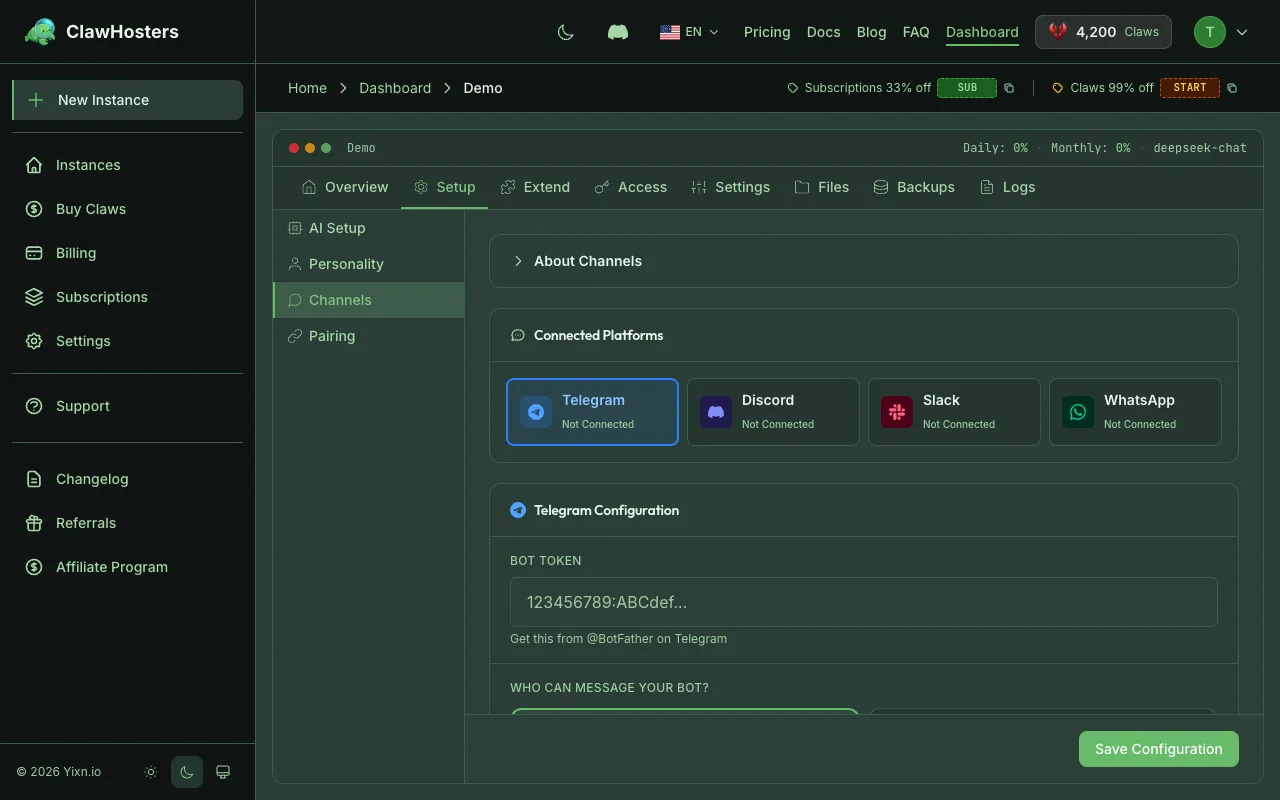
How Multi-channel Works
All channels connect to a single OpenClaw instance running inside your container. This means:
- Shared AI context. The AI has the same skills, configuration, and capabilities no matter which channel you use
- Separate conversations. Each channel maintains its own conversation history. A Telegram conversation is separate from a WhatsApp conversation.
- Shared resources. All channels share the same memory, CPU, and LLM tier allocation
There is no extra cost for connecting multiple channels. Your tier pricing covers the instance itself, not the number of channels.
Supported Channel Combinations
| Channel | Can Run Alongside |
|---|---|
| Web UI | Always available, no pairing needed |
| Telegram | Can pair one Telegram bot per instance |
| Can pair one WhatsApp number per instance | |
| Discord | Can connect one Discord bot per instance |
| Slack | Can connect one Slack app per instance |
You can run all five channels at the same time. Each one connects to your instance independently.
Setting Up Multiple Channels
Step 1: Start with the web UI
The web UI works automatically once your instance is running. No setup needed. Use it to verify your instance is healthy before adding other channels.
Step 2: Add Telegram
Follow the Connecting Telegram guide to pair a Telegram bot. The web UI continues working while you set up Telegram.
Step 3: Add WhatsApp
Follow the Connecting WhatsApp guide to pair a WhatsApp number. Both the web UI and Telegram continue working while you add WhatsApp.
Step 4: Add Discord (optional)
Follow the Connecting Discord guide to connect a Discord bot. All other channels continue working.
Step 5: Add Slack (optional)
Follow the Connecting Slack guide to connect a Slack app. All other channels continue working.
Things to Know
Conversations are isolated between channels. If you start a conversation in Telegram, you cannot continue it in WhatsApp or the web UI. Each channel has its own conversation thread.
All channels share memory. All channels on your instance share the available memory resources. Heavy usage from one channel affects the available resources for other channels. This rarely matters for chat conversations, but it can matter if you use features like file processing or web browsing.
Channel connections survive restarts. If your instance restarts (manually or because of memory pressure), channel connections resume automatically within 1-2 minutes. You don't need to re-pair.
Rebuilds require re-pairing. If you rebuild your instance, all channel connections are lost. You'll need to pair Telegram, WhatsApp, Discord, and Slack again. The web UI works right away with your gateway token.
When One Channel Stops Working
If one channel stops responding while others work fine:
- Check the channel's pairing status in your dashboard
- Wait 2 minutes. The connection might be re-establishing after a restart
- Re-pair if needed. Generate a new pairing code from the dashboard
If all channels stop working simultaneously, the issue is likely with the instance itself. Check the dashboard for status changes.
Choosing Between Channels
| Use Case | Recommended Channel |
|---|---|
| Full-featured interaction, file uploads | Web UI |
| Quick questions from your phone | Telegram |
| Integration with existing WhatsApp workflows | |
| Team communication with bots | Discord or Slack |
| Desktop work sessions | Web UI |
| On-the-go access with notifications | Telegram or WhatsApp |
Many users keep the web UI as their primary channel for detailed work and use Telegram or WhatsApp for quick interactions on the go.
Related Docs
- Using the Web UI. The built-in browser interface
- Connecting Telegram. Telegram bot pairing
- Connecting WhatsApp. WhatsApp number pairing
- Connecting Discord. Discord bot setup
- Connecting Slack. Slack workspace integration
- Connection Issues. Troubleshooting channel connectivity
Related Documentation
What is OpenClaw?
An Open-Source AI Assistant You Can Self-Host OpenClaw is an open-source framework for running y...
Using the Web UI
The Built-In Web Interface Every OpenClaw instance includes a web-based chat interface accessibl...
Instance Settings and Configuration
Overview After creating an instance, you can configure its AI model, messaging channels, web acc...
