
Loading...
> docs/telegram
Connecting Telegram
4 min read
Channels
Last updated March 05, 2026
What This Connects
Telegram is one of the messaging platforms your OpenClaw instance can use to communicate with users. Once connected, people can message your bot on Telegram and get responses powered by your OpenClaw instance.
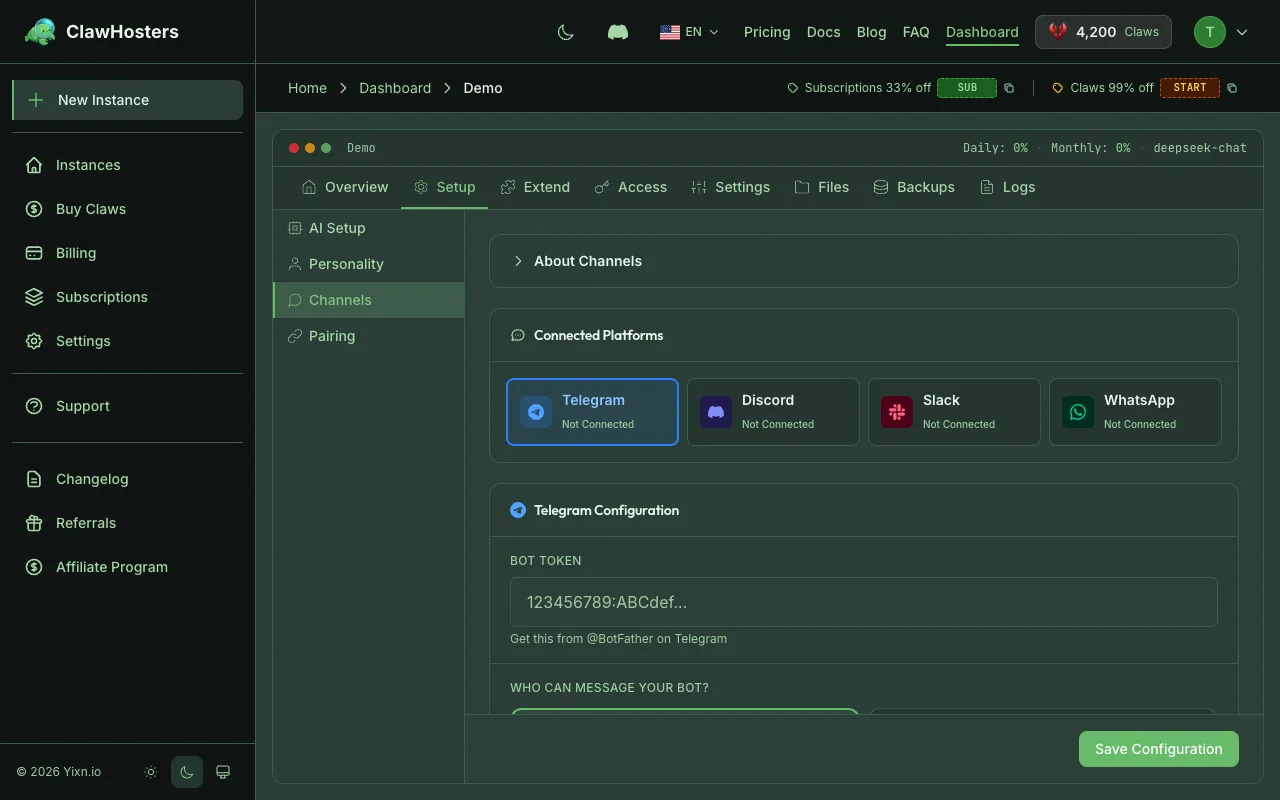
You need a Telegram bot token and, depending on your DM policy, a pairing step to authorize specific users.
Prerequisites
Before connecting Telegram, make sure you have:
- A running OpenClaw instance on ClawHosters
- A Telegram account
- Access to BotFather on Telegram (the official bot creation tool)
Step 1: Create a Telegram Bot via BotFather
Open Telegram and search for @BotFather, or go directly to t.me/BotFather.
- Send
/newbotto BotFather - Choose a display name for your bot (this is what users see, e.g. "My AI Assistant")
- Choose a username for your bot (must end in
bot, e.g.my_ai_assistant_bot) - BotFather responds with your bot token, a string that looks like
123456789:ABCdefGHIjklMNOpqrsTUVwxyz
Copy this token. You will paste it into the ClawHosters setup form in the next step.
Warning: Treat your bot token like a password. Anyone with this token can control your bot. If you suspect it has been compromised, use
/revokein BotFather to generate a new one.
Step 2: Enter the Bot Token in ClawHosters
There are two ways to enter your bot token, depending on whether your instance is new or already running.
During Instance Setup (New Instance)
When you create a new instance, the setup wizard includes a Telegram step:
- Paste your bot token into the token field
- Choose a DM policy:
- Pairing mode (recommended): Users must go through a pairing process before they can chat. This gives you control over who talks to your bot.
- Open mode: Anyone who finds your bot on Telegram can message it directly. No approval required.
- Click Save & Continue
For a Running Instance (Settings)
If your instance is already running:
- Go to your instance dashboard
- Open Settings
- Find the Telegram section under Messenger configuration
- Enter your bot token and choose the DM policy
- Save the changes. Your instance reconfigures and restarts the Telegram connection.
Step 3: Approve a User (Pairing Mode Only)
If you chose pairing mode, users need your approval before they can chat with the bot. Here is how the process works:
What the User Does
- The user opens Telegram and finds your bot (by searching for the bot username)
- The user sends any message to the bot
- The bot replies with a pairing code, a short alphanumeric string (6-10 characters)
- The user copies this code and sends it to you (the instance owner)
What You Do (Instance Owner)
- Go to your instance dashboard on ClawHosters
- Click Approve Telegram Pairing
- Enter the pairing code the user gave you
- Click Approve
Once approved, the user is added to the bot's allowed list. They can now chat with your OpenClaw instance through Telegram.
Info: Each user needs to be approved individually. You can approve multiple users, but each one goes through their own pairing process.
How It Works Behind the Scenes
When you save the bot token, ClawHosters encrypts it and stores it securely. The token is transmitted to your instance via SSH, so it never passes through the public internet unencrypted.
During pairing approval, ClawHosters connects to your running instance via SSH, executes the pairing confirmation inside the Docker container, and stores the approved user's Telegram ID in the instance configuration.
Changing the Bot Token Later
If you need to swap the bot token (for example, if you create a new bot or revoke the old token):
- Go to your instance Settings
- Update the bot token field with the new token
- Save. Your instance reconfigures automatically.
The old bot stops responding. The new bot picks up where it left off, using the same instance and configuration.
Troubleshooting
Bot does not respond to messages
- Verify the bot token is correct (check BotFather for the current token)
- Make sure your instance status is Running (a paused or stopped instance cannot receive messages)
- If using pairing mode, confirm the user has been approved
Pairing code not working
- Pairing codes are single-use. If it was already used or has expired, the user should message the bot again to get a fresh code
- Make sure you enter the code exactly as shown (case-sensitive)
"Pairing required" error
- This means the bot is in pairing mode and the user has not been approved yet
- Follow the pairing steps above to authorize the user
Bot token was leaked
- Open Telegram and go to @BotFather
- Send
/revokeand select the compromised bot - BotFather generates a new token
- Update the token in your ClawHosters instance settings
Related Docs
- Quickstart Guide. Full setup walkthrough including Telegram
- Creating Your First Instance. Instance creation wizard details
Related Documentation
Connecting Discord
What This Connects Discord is one of the messaging platforms your OpenClaw instance can use to c...
Authentication and Access Control
How Authentication Works in ClawHosters ClawHosters uses different authentication methods depend...
Connecting Slack
What This Connects Slack is one of the messaging platforms your OpenClaw instance can use to com...
