
Loading...
> docs/scaling
Scaling and Performance
4 min read
Advanced
Last updated March 05, 2026
Getting the Most Out of Your Instance
This page covers how to monitor resource usage, recognize when you need more capacity, and improve performance within your current tier. Whether you are on ClawHosters or self-hosting, these principles apply to both.
Understanding Resource Limits
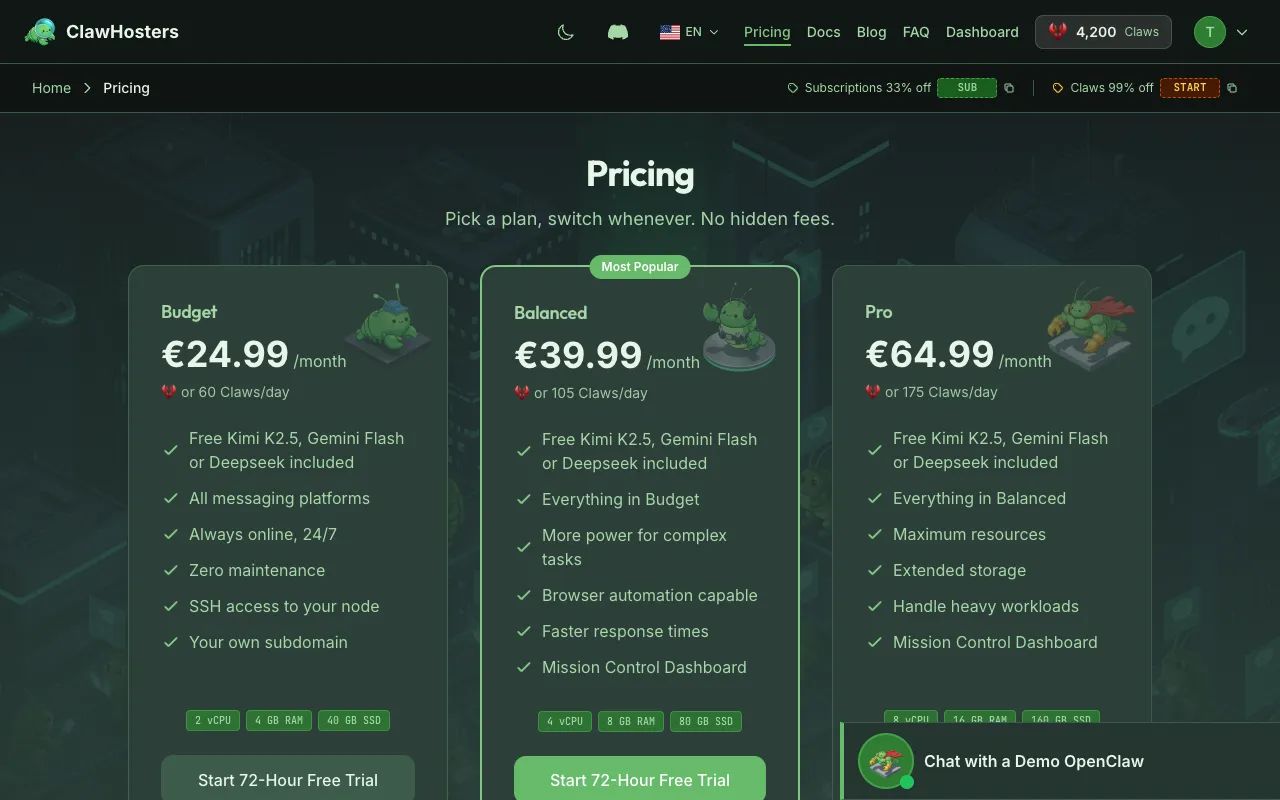
Each ClawHosters tier provides specific resource allocations:
| Resource | Budget | Balanced | Pro |
|---|---|---|---|
| vCPU | 2 | 4 | 8 |
| RAM | 4 GB | 8 GB | 16 GB |
| Storage | 40 GB | 80 GB | 160 GB |
Docker enforces resource limits for the container. If your OpenClaw process exceeds these limits, Docker restarts the container automatically. RAM is shared between the operating system, Docker overhead, and the container.
Signs You Need to Upgrade
Memory Pressure
Your instance may need more memory if you observe:
- Frequent container restarts. Check with
docker inspect openclaw | grep RestartCountor look at the dashboard status history - Slow response times. When memory is nearly full, the system spends more time managing memory than processing requests
- Out-of-memory kills. Docker logs will show OOM (out of memory) events
CPU Saturation
Your instance may need more CPU if you observe:
- Consistently slow responses even when memory usage is normal
- Long processing times for tasks that involve file operations or web automation
- Playwright timeouts. Browser automation is CPU-intensive and may timeout on smaller tiers
Storage Running Low
Check storage usage on self-hosted instances with:
bash
docker system df
df -h
On ClawHosters, storage usage is visible in the dashboard.
Monitoring Your Instance
On ClawHosters
The dashboard provides basic monitoring:
- Instance status (running, stopped, restarting)
- Uptime since last restart
- Current tier and resource allocation
On Self-hosted Instances
Use standard Linux tools to monitor resource usage:
bash
# Memory usage
free -h
docker stats openclaw --no-stream

# CPU usage
top -bn1 | head -20

# Disk usage
df -h
docker system df
Container-Level Monitoring
bash
# Real-time resource usage
docker stats openclaw

# Check restart count
docker inspect openclaw --format='{{.RestartCount}}'

# View recent logs for errors
docker logs openclaw --tail 100
Improving Performance
LLM Response Times
The largest factor in response speed is usually the LLM provider, not your instance resources:
| LLM Tier | Typical Response Time | Notes |
|---|---|---|
| Eco (DeepSeek V3) | 2-8 seconds | Fastest for simple queries |
| Standard (Gemini) | 3-10 seconds | Good balance of speed and quality |
| Premium (Claude Haiku) | 3-12 seconds | Highest quality responses |
| BYOK | Varies | Depends on your provider and model |
To improve LLM response times:
- Use a simpler model for routine tasks. Not every query needs the most capable model
- Keep conversation context manageable. Very long conversations slow down each subsequent response
- Start new conversations periodically. This resets the context window
Reducing Memory Usage
Reduce memory usage without upgrading:
- Limit installed packages. Each package in the container uses memory
- Reduce Playwright usage. Browser instances consume significant memory. Close them when not in use
- Monitor conversation history size. Large conversation logs accumulate over time
Web Automation Performance
Playwright (browser automation) is the most resource-intensive feature:
- Budget tier. Can run basic web tasks, but complex pages may timeout
- Balanced tier. Handles most web automation tasks reliably
- Pro tier. Best for heavy web automation workloads
Tips for better Playwright performance:
- Avoid running multiple browser tabs simultaneously on Budget tier
- Use headless mode (default) for lower resource consumption
- Close browser contexts after completing tasks
Upgrading Your Tier
On ClawHosters
To upgrade your tier:
- Go to your instance settings in the dashboard
- Select a higher tier
- The instance will be rebuilt with the new resources
- Your data volume is preserved during the upgrade
Note: Upgrading requires a brief restart. Your data and configuration are preserved because they are stored on the persistent data volume.
Downgrading
Downgrading works the same way. Be aware that if your current memory usage exceeds the lower tier's limit, the container may restart more frequently after downgrading.
On Self-hosted Instances
To scale a self-hosted instance:
- Vertical scaling. Upgrade your VPS to a larger plan (more CPU/RAM)
- Memory limit. Update the
mem_limitin yourdocker-compose.yml - Restart the container to apply the new limits
yaml
# docker-compose.yml - increase memory limit
services:
  openclaw:
    mem_limit: 4g  # Increase from 2g to 4g
When Scaling Does Not Help
Some performance issues are not solved by adding resources:
- LLM provider latency. Response time depends on the API provider, not your server
- Network issues. Slow webhooks or API calls are network-bound, not CPU-bound
- Plugin bottlenecks. A poorly written plugin can slow things down regardless of resources
- Rate limits. LLM providers impose rate limits that are independent of your instance size
For these cases, see Troubleshooting Performance for specific solutions.
Related Docs
- Architecture Overview. How the infrastructure works
- Resource Limits. Detailed resource allocations per tier
- Troubleshooting Performance. Diagnosing slow responses
- Docker Configuration Reference. Container configuration options
Related Documentation
Understanding Resource Limits
How Resources Are Allocated Each ClawHosters instance runs on a dedicated Hetzner Cloud VPS. The...
Performance Troubleshooting
When Your Instance Feels Slow If your OpenClaw instance is responding slowly, taking a long time...
Best Practices for Production Use
Running OpenClaw in Production Once your OpenClaw instance is running and connected to your pref...
