
Loading...
> docs/zerotier-vpn
ZeroTier VPN
5 min read
Advanced
Last updated March 05, 2026
What ZeroTier Enables
ZeroTier creates an encrypted peer-to-peer VPN tunnel between your local machine and your ClawHosters instance. Once connected, both devices share a private virtual network, as if they were on the same LAN.
This is useful when you want your OpenClaw instance to reach services running on your local machine or inside your home network, without exposing those services to the public internet.
Why You Would Use This
The most common use case is Bring Your Own Key (BYOK) with a local LLM. If you run Ollama, LM Studio, or another local inference server on your machine, ZeroTier lets your ClawHosters instance send requests to it directly over the VPN tunnel. No port forwarding, no dynamic DNS, no public exposure.
Other use cases include:
- Private database access. Let your instance query a database running on your local network
- Internal API access. Connect your instance to APIs that are only available inside your network
- Development and testing. Route traffic between your dev machine and a running instance without opening firewall ports
Prerequisites
Before setting up ZeroTier, make sure you have:
- A running OpenClaw instance on ClawHosters
- A ZeroTier account (free at zerotier.com)
- The ZeroTier client installed on your local machine
- A ZeroTier network created in ZeroTier Central
If you do not have a ZeroTier account yet, sign up at my.zerotier.com. The free tier supports up to 25 devices on a single network, which is more than enough for this use case.
Step 1: Create a ZeroTier Network
- Log in to ZeroTier Central
- Click Create A Network
- A new network appears with a randomly generated 16-character Network ID (e.g.
a1b2c3d4e5f6g7h8) - Note this Network ID. You will need it in Step 3.
The default network settings work fine for most setups. ZeroTier assigns IP addresses from a private range automatically.
Step 2: Join the Network on Your Local Machine
- Install the ZeroTier client from zerotier.com/download if you have not already
- Open the ZeroTier application on your machine
- Join the network using the 16-character Network ID from Step 1
- Go back to ZeroTier Central and authorize your machine under the Members section of your network
Once authorized, your machine receives a ZeroTier IP address (something like 10.147.x.x). You can see this IP in the ZeroTier client or in ZeroTier Central.
Step 3: Connect Your ClawHosters Instance
- Go to your instance dashboard on ClawHosters
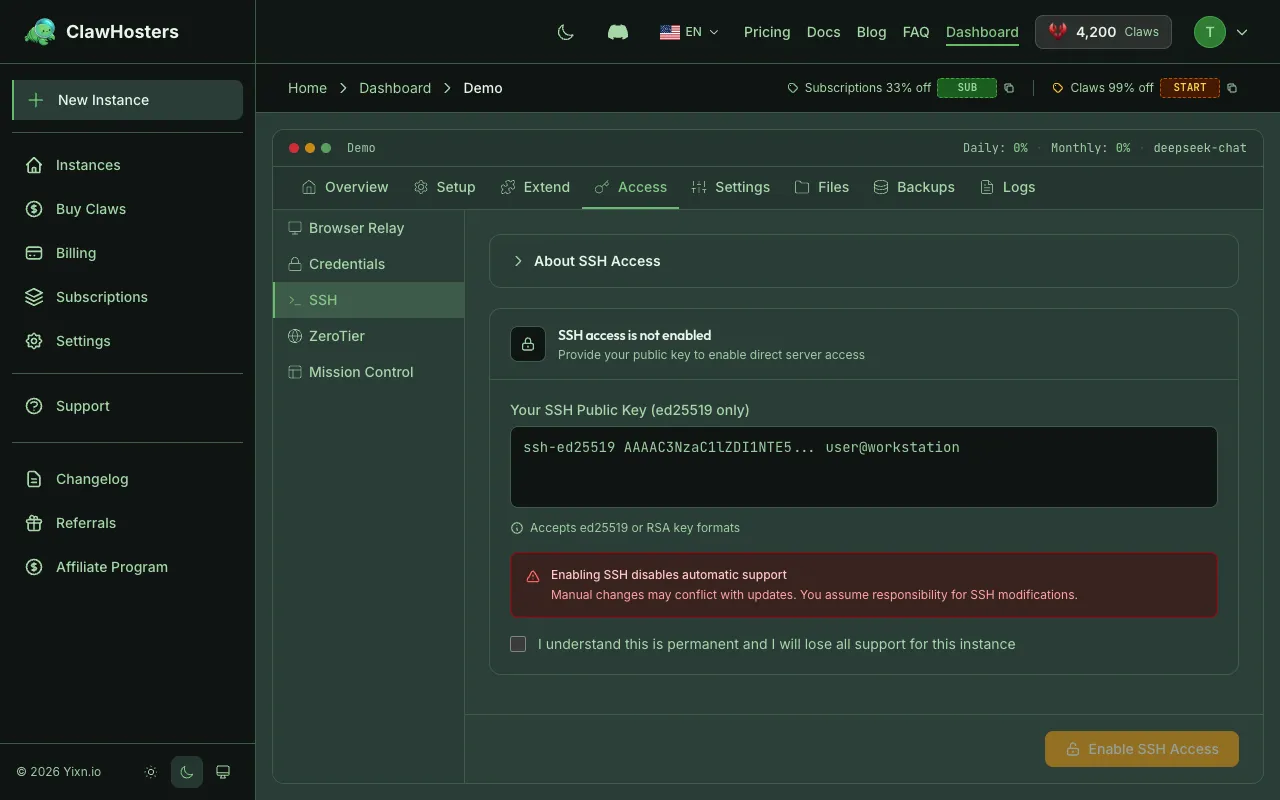
- Open the Access tab
- Find the ZeroTier section
- Enter your 16-character Network ID
- Click Join
Your instance sends a join request to the ZeroTier network. The instance's ZeroTier member appears as "Pending Authorization" in ZeroTier Central.
Step 4: Authorize the Instance
- Go to ZeroTier Central and open your network
- Scroll down to the Members section
- Find the new member (your ClawHosters instance) and check the Auth checkbox
- The member moves from pending to authorized
Back in the ClawHosters dashboard, you can click the Refresh button to check the connection status. Once authorized, the status changes to Connected and shows the ZeroTier IP address assigned to your instance.
Step 5: Use the ZeroTier Connection
Once both your local machine and your instance are connected and authorized on the same ZeroTier network, they can reach each other using their ZeroTier IP addresses.
Example: BYOK with Ollama
If you run Ollama on your local machine (default port 11434), configure your BYOK endpoint in ClawHosters as:
text
http://10.147.x.x:11434/v1
Replace 10.147.x.x with your local machine's ZeroTier IP address. Your OpenClaw instance sends LLM requests through the encrypted ZeroTier tunnel to Ollama on your machine.
Make sure Ollama is configured to listen on all network interfaces (set OLLAMA_HOST=0.0.0.0 in your Ollama environment) so it accepts connections from the VPN.
Disconnecting
To disconnect your instance from the ZeroTier network:
- Go to your instance dashboard on ClawHosters
- Open the Access tab
- Click the Disconnect button in the ZeroTier section
The instance leaves the network. You can also remove the member from ZeroTier Central if you want to clean up.
Important Notes
Firewall adjustments are automatic. When you join a ZeroTier network, ClawHosters opens UDP port 9993 on your instance's firewall (required for ZeroTier's peer-to-peer protocol). When you disconnect, the port is closed again.
Traffic is encrypted. All data between your machine and the instance travels through ZeroTier's encrypted tunnel. Even if someone intercepts the packets, they cannot read the contents.
ZeroTier is peer-to-peer. After the initial connection is established, traffic flows directly between your machine and the instance. It does not route through ZeroTier's servers (except during initial peer discovery).
Your local machine must be online. If you use ZeroTier for BYOK with a local LLM, your machine needs to be running and connected to the ZeroTier network for your instance to reach it. If your machine goes offline, LLM requests from your instance will fail until the connection is restored.
Troubleshooting
Status stays on "Pending Authorization"
- Make sure you authorized the instance's member in ZeroTier Central (check the Auth checkbox)
- Click the Refresh button in the ClawHosters dashboard to re-check the status
- It can take up to 30 seconds for the connection to establish after authorization
Instance cannot reach your local machine
- Verify both devices are authorized on the same ZeroTier network
- Check that the service on your local machine listens on all network interfaces or specifically on the ZeroTier interface
- Test connectivity by checking the ZeroTier IP addresses shown in ZeroTier Central for both members
- Make sure your local firewall allows incoming connections on the ZeroTier interface
BYOK requests time out
- Confirm your local LLM server is running and accessible on the expected port
- Check that the ZeroTier connection shows "Connected" in the ClawHosters dashboard
- Verify the endpoint URL uses the correct ZeroTier IP and port
Related Docs
- Architecture Overview. How ClawHosters infrastructure works
- LLM Configuration. LLM providers and Bring Your Own Key setup
- Network Security. Firewall rules and network protections
Related Documentation
Use Your Own LLM at Home
What This Guide Is About You can run an AI model on your own computer and connect it to your Cla...
Architecture Overview
How ClawHosters Works ClawHosters is a managed hosting platform for OpenClaw, an open-source AI ...
What is ClawHosters?
Managed OpenClaw Hosting ClawHosters is a managed hosting platform for OpenClaw AI assistants. Y...
