ClawHosters
by Daniel Samer
5 min read
Loading...
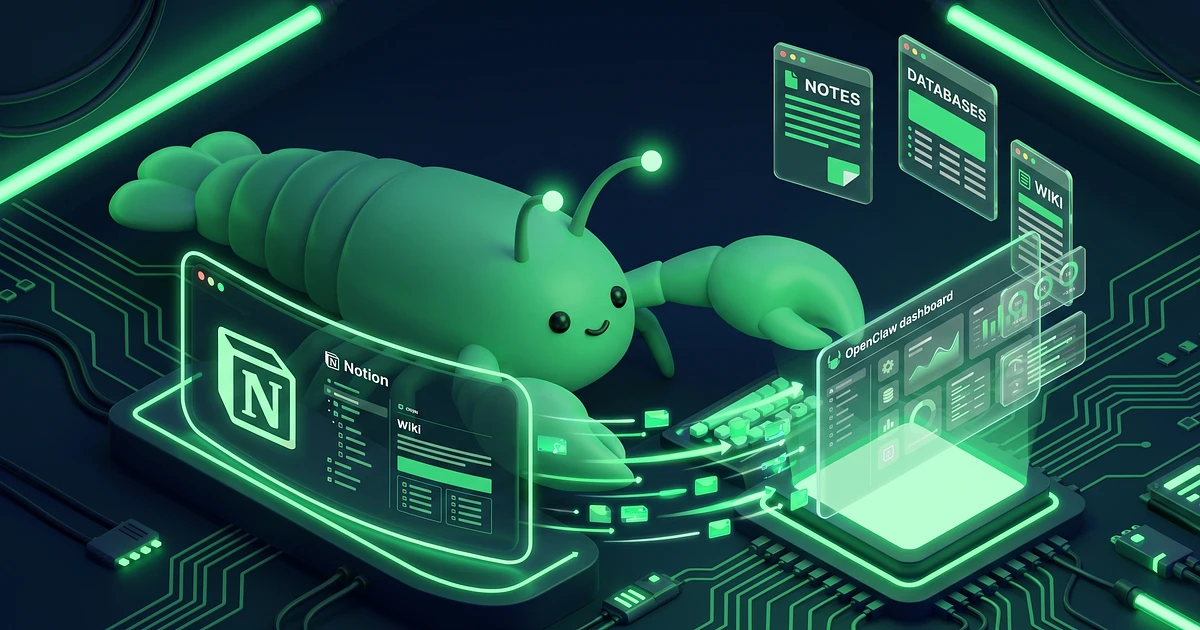
Your AI agent knows a lot about the world. But it knows nothing about your project board, your meeting notes, or that CRM database you built in Notion last Tuesday. The Notion MCP server fixes that.
Once connected, your OpenClaw agent can search your workspace, read pages, create new entries, update properties, and query databases with filters. It becomes a Notion assistant that actually understands your data, not just generic productivity advice.
Two things. A Notion account with at least one workspace, and an OpenClaw instance on the Balanced or Pro tier (MCP connections require these tiers). The Budget tier doesn't support custom MCP servers.
You don't need a terminal or command line experience. On ClawHosters, the config happens through the dashboard or a simple SSH edit. If you've ever edited a text file, you can do this.
Go to notion.so/my-integrations and click "New integration." Give it a name like "OpenClaw Agent" and select your workspace. The integration type should be "Internal."
After creation, you'll see an API token starting with ntn_. Copy it. You'll need it in Step 3.
Quick note on permissions: the default settings (Read, Update, Insert content) work fine for most use cases. You probably don't need the "Delete content" capability unless you're building something specific.
This is the step people skip, and then wonder why everything returns 404 errors.
Notion integrations can only access pages you explicitly share with them. Open the page or database you want your agent to read, click the three-dot menu in the top right, scroll to "Connections," and add your integration by name.
You need to do this for every top-level page you want accessible. Child pages inherit the connection from their parent, so sharing a parent page covers everything nested under it.
On your ClawHosters instance, add this block to your openclaw.json under mcpServers:
{
  "notionApi": {
    "command": "npx",
    "args": ["-y", "@notionhq/notion-mcp-server"],
    "env": {
      "NOTION_TOKEN": "ntn_your_token_here"
    }
  }
}
The @notionhq/notion-mcp-server package is the official Notion MCP implementation, maintained by the Notion team. It's also on the ClawHosters verified package list, so you won't run into compatibility issues.
After saving, restart your gateway. The server takes about 10 seconds to spin up.
For the full config walkthrough, the MCP Servers Guide covers the general process in more detail.
The official Notion MCP server exposes 22 tools. Here are the ones you'll use most:
Search your entire workspace by keyword
Read pages and all their nested block content
Create new pages with custom properties
Query databases with filters and sorting (like a Notion formula, but in natural language)
Update page properties like status, assignees, and dates
Add comments to existing pages
In practice, you can say "show me all tasks assigned to me that are due this week" and get a filtered database query back. Or "create a meeting notes page for today's standup with these action items" and it builds the page with the right template.
Morning briefing: Ask your agent to summarize what's overdue in your task database and what meetings are scheduled today. It pulls live data, not guesses.
Research assistant: Tell it to save findings to a specific Notion page as you work. Every answer gets appended as a content block with the source.
CRM updates: After a client call, tell your agent to update the contact's status, add notes, and set the next follow-up date. All in one message.
Knowledge base queries: "What did we decide about the pricing model in last week's meeting?" Your agent searches your meeting notes and finds the answer.
The Notion MCP server has a few constraints. The API enforces a 3 requests/second rate limit, so bulk operations take time. Rich text blocks are capped at 2,000 characters each. File attachments and media aren't accessible through the API. Synced blocks and transcription blocks don't work either.
The biggest practical limitation is the manual page sharing from Step 2. There's no "share everything" toggle. If you forget to share a page, your agent simply can't see it. This is a security feature, but it catches people off guard.
RAM usage stays reasonable. Node.js MCP servers typically use 50 to 150 MB, which fits comfortably on all ClawHosters tiers. Check the docs for resource monitoring details.
The server itself is free and open source. You need a Notion account (free tier works) and API access, which Notion provides at no extra cost. Your only expense is the ClawHosters instance running OpenClaw.
Not with a single integration. Each integration token is tied to one workspace. You can add multiple `mcpServers` entries with different tokens if you need access to separate workspaces.
No. You must manually share each top-level page or database with your integration. Child pages inherit access from their parent. If your agent returns empty results, check that page sharing is configured.
The Notion API allows 3 requests per second. If your agent sends too many rapid queries, some will fail with a 429 error. In practice, normal conversation pace rarely hits this limit.
Yes. Custom MCP servers require the Balanced or Pro tier. The Budget tier includes the three default servers (Filesystem, Shell, Browser) but doesn't support adding custom ones like Notion.
*Last updated: May 2026*
Three open-source AI agent frameworks launched within two weeks of each other in early 2026. All three have the word "Claw" in the name. All three let you run your own AI assistant. And all three make completely different bets about what matters most.

Your OpenClaw agent reads, writes, searches the web, calls tools. But it can't hear you. And it can't talk back. Voice changes that, and it's not as complicated as you'd think.

Port forwarding your AI agent to the public internet is a terrible idea. OpenClaw has broad access to your system, shell, files, network, and it eagerly reaches out to external APIs. Exposing that to the open web is asking for trouble. Tailscale gives you encrypted remote access to your OpenClaw...