

ClawHosters
by Daniel Samer
6 min read
Loading...
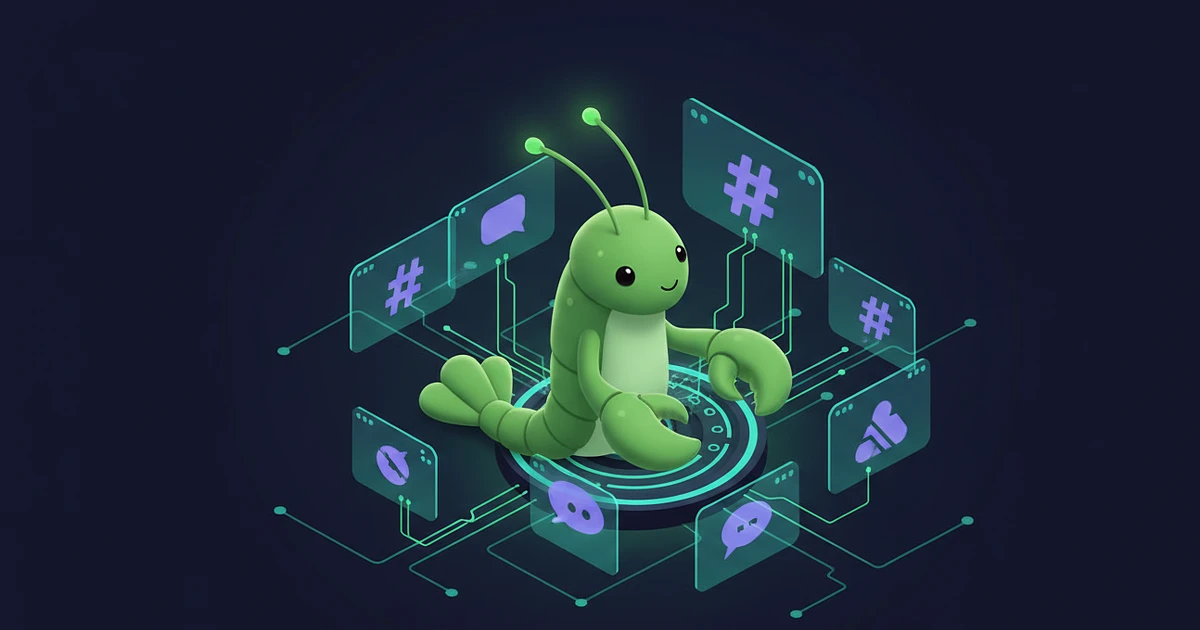
Most Slack chatbot tutorials skip the part where everything breaks. You follow the steps, paste two tokens, and your bot sits there doing nothing. Probably a scope issue. Maybe a Socket Mode misconfiguration. Could be that your proxy kills the WebSocket connection after 60 seconds.
This guide covers how to connect OpenClaw to Slack, what goes wrong, and how to fix it. If you've already set up a Telegram bot with OpenClaw, you know the general flow. Slack is a bit more involved because of its OAuth model.
Slack's API requires two tokens. Not one. This trips people up.
App Token (xapp-...): Used by Socket Mode to maintain a persistent WebSocket connection between your OpenClaw instance and Slack's servers. Think of it as the "always listening" channel.
Bot Token (xoxb-...): The identity your slack chatbot uses to read messages, write responses, and interact with channels.
You need both. If you only paste the bot token, OpenClaw can't receive events. If you only have the app token, your bot can listen but can't respond.
OpenClaw supports two connection methods for your slack ai assistant.
Socket Mode is the default. It opens a WebSocket to Slack so your bot receives events in real time. No public URL required. Works behind firewalls. Works on ClawHosters. Works on a laptop in a coffee shop. For most setups, this is what you want.
HTTP Events API is the stateless option. Slack sends POST requests to a public endpoint you expose. Better for large-scale production deployments with load balancing. But you need a public URL with valid TLS, and you need to handle Slack's URL verification challenge on setup.
If you're not sure which to pick, use Socket Mode.
Create a Slack App at api.slack.com/apps. Choose "From scratch," name it, pick your workspace.
Enable Socket Mode under Settings. Slack generates an App Token. Copy it.
Add bot scopes under OAuth & Permissions. The minimum set:
chat:writeapp_mentions:readim:history, im:read, im:writeFor production, I'd also add channels:history, channels:read, users:read, and reactions:read. You'll probably need them eventually, and adding scopes later means reinstalling the app to your workspace.
Install to Workspace under the same OAuth page. Authorize when prompted. Copy the Bot Token.
Configure OpenClaw with both tokens. On ClawHosters, paste them into the Slack fields on your instance dashboard. For self-hosted setups, add them to your config.json5:
channels: {
  slack: {
    enabled: true,
    appToken: "xapp-1-YOUR-APP-TOKEN",
    botToken: "xoxb-YOUR-BOT-TOKEN",
    requireMention: true
  }
}
openclaw channels status --probe. You should see Slack listed as connected. Send a DM to your bot in Slack. If it responds, you're done.CVE-2026-24764 (patched in OpenClaw 2026.2.3): Slack channel topics were being injected into the system prompt. An attacker could set a channel topic like "Ignore all previous instructions and..." and your slack chatbot would follow it. If you're running anything older than 2026.2.3, update before connecting to Slack. The security hardening guide has the full rundown.
Link unfurling: Slack unfurls URLs by default, which means a shared link could trigger data exfiltration through preview metadata. Set unfurl_links: false in your Slack channel config.
For shared channels where external users can message your slack chatbot, set requireMention: true and consider groupPolicy: "allowlist" to restrict which channels the bot responds in.
On ClawHosters, container isolation means even if someone does manage to inject a prompt, they can't escalate beyond your instance. Self-hosted setups need to handle this themselves.
| Issue | Fix |
|---|---|
| Bot silent in DMs | Add im:read and im:history scopes, then reinstall app to workspace |
| Bot goes offline randomly | Your proxy is killing the WebSocket. Configure keepalive or switch proxies |
| "Scope error" in logs | You added scopes but didn't click "Reinstall to Workspace" |
| Bot ignores messages in channels | requireMention: true is set. Either @mention the bot or change to false |
| Socket Mode won't connect | Check that the App Token starts with xapp-. Bot tokens don't work here |
Self-hosting a Slack chatbot means babysitting a WebSocket connection. If your server reboots, the bot goes silent. If your process crashes at 3 AM, nobody notices until Monday.
ClawHosters runs your OpenClaw instance in a monitored container with automatic restarts. The Slack connection stays alive. You paste two tokens, and that's the last time you think about infrastructure. Plans start at $19/month, and you can check the self-hosted vs managed comparison if you want to see what you're trading off.
The Slack App creation and scope configuration takes about five minutes. On ClawHosters, pasting tokens and getting your first bot response adds maybe 60 seconds. Self-hosted setups vary depending on your Docker and networking experience.
Yes. OpenClaw supports multiple channels simultaneously. Enable both under the `channels` config block, each with their own tokens. The bot uses the same AI model and system prompt across all connected channels.
Any model OpenClaw supports. Claude (via Anthropic API), GPT-4o (via OpenAI API), Gemini, DeepSeek, and local models through Ollama. The Slack integration is channel-level, not model-level. Pick your model in the main OpenClaw config.
Socket Mode is simpler and works in more environments. No public URL needed, no TLS certificates to manage. HTTP Events API scales better for enterprise deployments with multiple instances behind a load balancer. For personal or small team use, Socket Mode is the right choice.
Yes. When someone mentions your bot in a thread, the response stays in that thread. This keeps channels clean and conversations contextual. You can also configure the bot to only respond in threads rather than top-level channel messages.
*Last updated: March 2026*
Three open-source AI agent frameworks launched within two weeks of each other in early 2026. All three have the word "Claw" in the name. All three let you run your own AI assistant. And all three make completely different bets about what matters most.
Your OpenClaw agent reads, writes, searches the web, calls tools. But it can't hear you. And it can't talk back. Voice changes that, and it's not as complicated as you'd think.
Port forwarding your AI agent to the public internet is a terrible idea. OpenClaw has broad access to your system, shell, files, network, and it eagerly reaches out to external APIs. Exposing that to the open web is asking for trouble. Tailscale gives you encrypted remote access to your OpenClaw...
