

ClawHosters
by Daniel Samer
5 min read
Loading...
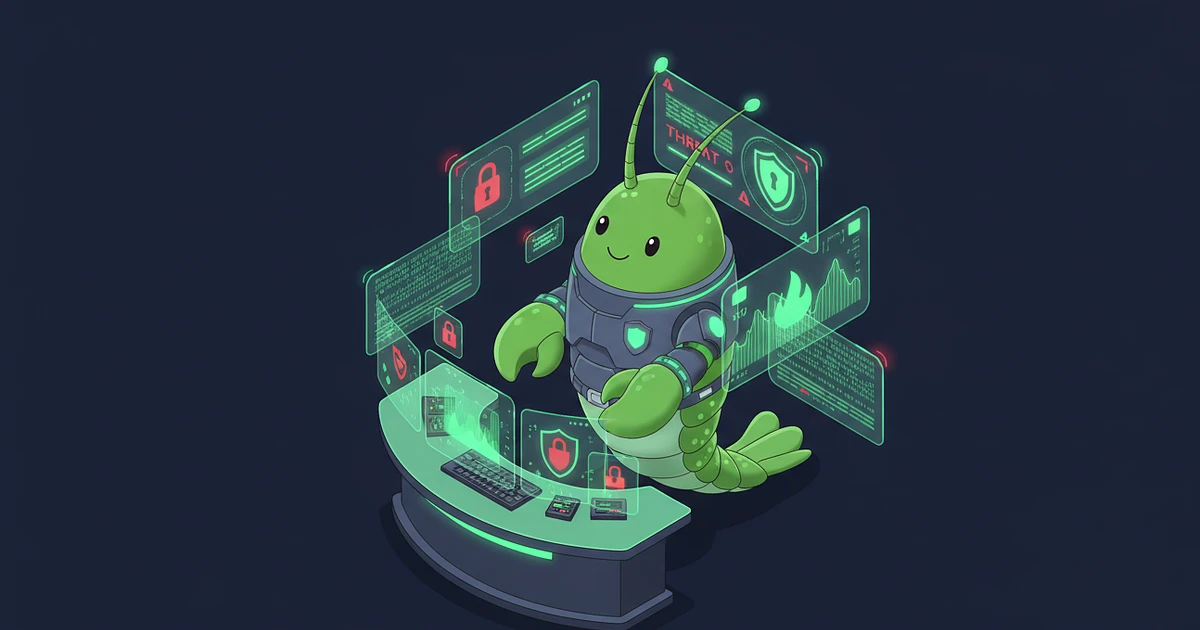
Your OpenClaw instance ships with almost zero ai agent security turned on. The gateway binds to loopback, which is good. But the tool access model? Wide open. Your agent can run any shell command, read any file your OS user can reach, and accept messages from anyone who finds your Telegram bot.
According to CrowdStrike's February 2026 advisory, over 135,000 OpenClaw instances are exposed across 82 countries. 12,812 of those were exploitable via remote code execution. And Permiso Security documented a fake weather skill on ClawHub that silently exfiltrated API keys to an attacker-controlled webhook. This isn't theoretical.
The fix takes about 60 seconds. OpenClaw has three permission layers, and once you understand them, the config is a single JSON file.
If you're running on ClawHosters, infrastructure security is done. Container isolation, firewall rules, SSH hardening, brute force protection, automatic updates. You don't touch any of that.
But the application layer is still yours. Three things need configuring: who messages your bot, which tools it can use, and whether it can run shell commands. That's what this guide covers.
Self-hosting? You've got a longer list. The self-hosting vs managed comparison breaks down the full difference.
The dmPolicy setting controls who gets to talk to your agent. The default is pairing, which requires a one-time verification handshake. Sounds fine. But there's a better option.
Set it to allowlist and specify exact numeric Telegram user IDs in the allowFrom array. This is a hard gate. Nobody gets through unless they're on the list.
One thing that trips people up constantly: allowFrom requires your numeric Telegram user ID, not your @username. If you put @johndoe in there, it gets silently ignored. Your bot just stops responding and you have no idea why. Find your numeric ID by messaging your bot and checking openclaw logs --follow.
Controlling who messages your bot is only half the problem. Even with a locked allowlist, your agent might process content that contains hidden instructions. Palo Alto Networks Unit42 put it simply: agents with read-only access present a much lower threat surface than agents with write permissions.
OpenClaw's tool system has profiles and deny lists. Set the profile to messaging (lighter than the default standard) and explicitly deny the tool groups your agent doesn't need:
group:automation blocks cron jobs and gateway management
group:runtime blocks exec, bash, and process tools
group:fs blocks filesystem access outside the workspace
sessions_spawn and sessions_send prevent multi-session attacks
The OWASP AI Agent Security Cheat Sheet recommends scoped tools with explicit allowlists. Same principle here. If your agent's job is answering Telegram messages, it doesn't need to write files or manage cron.
This is the big one. By default, OpenClaw lets the agent run shell commands. That's the exec system.
Set exec.security to deny. Done. If you later need shell access for a specific use case, you can switch to allowlist mode and specify exactly which commands are permitted. The OpenClaw exec documentation covers all three modes.
The ask: "always" setting is belt and suspenders. It means even if you accidentally open up exec, you'll still get prompted before anything runs.
And keep elevated.enabled set to false. Elevated mode gives the agent access to cron management, gateway config, and session spawning. You don't want that.
Here's the complete config for ~/.openclaw/openclaw.json. Copy it, replace your Telegram ID, and you're done:
{
  "tools": {
    "profile": "messaging",
    "deny": ["group:automation", "group:runtime", "group:fs", "sessions_spawn", "sessions_send"],
    "fs": { "workspaceOnly": true },
    "exec": { "security": "deny", "ask": "always" },
    "elevated": { "enabled": false }
  },
  "channels": {
    "telegram": {
      "dmPolicy": "allowlist",
      "allowFrom": ["YOUR_NUMERIC_TELEGRAM_ID"]
    }
  }
}
The OpenClaw security documentation calls this the hardened 60-second baseline. It closes the most common attack vectors without breaking your agent's ability to hold a conversation.
After applying the config, run:
openclaw security audit
This scans your configuration and flags anything that's still open. If it comes back clean, you're good.
For the full security hardening walkthrough (including the ClawHosters infrastructure layer), check the complete security guide. And if you haven't tried ClawHosters yet, there's a free trial that ships with these security defaults already baked in.
It gets silently ignored. Your bot will stop responding to that user without any error message. Always use numeric Telegram user IDs. Find yours by messaging the bot and running `openclaw logs --follow` to see the sender ID in the log output.
You can, but allowlist is more durable. With pairing, anyone who completed the handshake at any point retains access. Allowlist is a hard gate. Only the numeric IDs you specify get through, and you can revoke access instantly by removing an ID.
Not for most use cases. If your agent's primary job is answering messages on Telegram, it doesn't need shell access. Denying exec just means the agent can't run commands like `ls`, `cat`, or `curl` on your server. Conversations, tool use, and knowledge retrieval all work fine without it.
Add their numeric Telegram user ID to the `allowFrom` array: `"allowFrom": ["123456789", "987654321"]`. Restart the OpenClaw process for the change to take effect.
ClawHosters handles infrastructure security (firewall, container isolation, SSH, auto-updates) automatically. The application-layer config shown in this guide is your responsibility. New instances ship with sensible defaults, but you should verify your `openclaw.json` matches the hardened baseline above.
*Last updated: March 2026*
Three open-source AI agent frameworks launched within two weeks of each other in early 2026. All three have the word "Claw" in the name. All three let you run your own AI assistant. And all three make completely different bets about what matters most.

Your OpenClaw agent reads, writes, searches the web, calls tools. But it can't hear you. And it can't talk back. Voice changes that, and it's not as complicated as you'd think.

Port forwarding your AI agent to the public internet is a terrible idea. OpenClaw has broad access to your system, shell, files, network, and it eagerly reaches out to external APIs. Exposing that to the open web is asking for trouble. Tailscale gives you encrypted remote access to your OpenClaw...
