

ClawHosters
by Daniel Samer
5 min read
Loading...
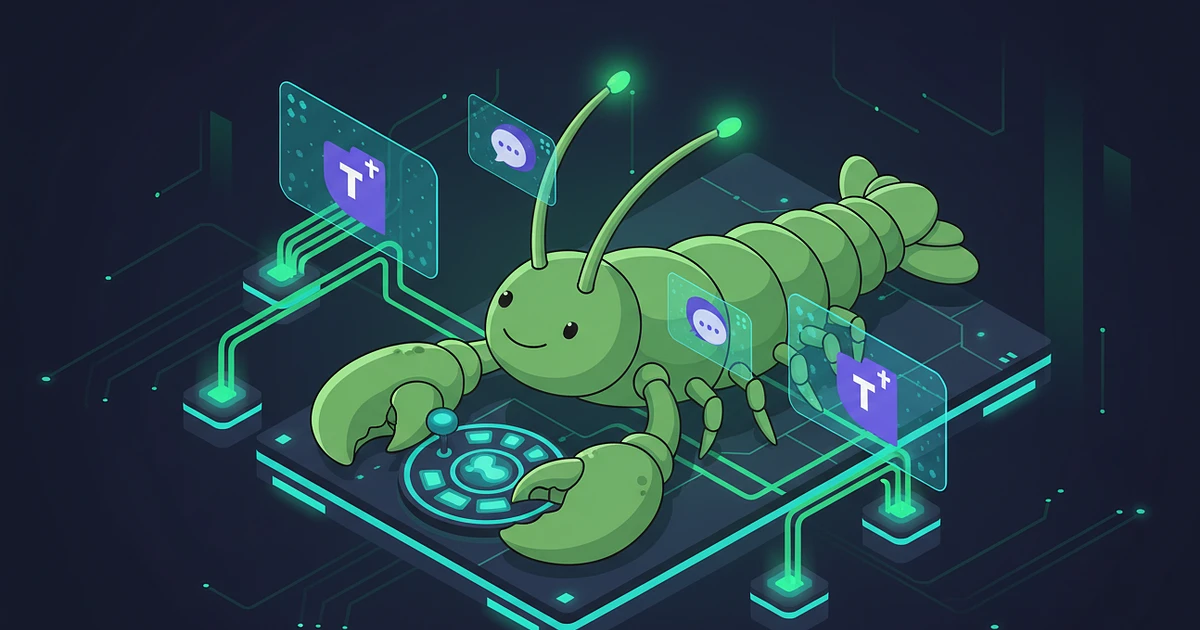
320 million people use Microsoft Teams every month. That's where decisions happen, questions get asked, and work actually moves forward. So it makes sense to put your AI assistant there too.
Microsoft wants you to pay $30 per user per month for Copilot. For a 50-person team, that's $18,000 a year. OpenClaw gives you a self-hosted alternative that connects to Teams with your own LLM keys. You pick the model. You control the data. And the per-user cost drops to basically nothing.
The setup takes about 20 minutes if you have these ready:
An Azure account (the free tier works fine for bot registration)
OpenClaw v2026.3.24 or newer (the March 2026 release migrated to the official Microsoft Teams SDK)
A public HTTPS URL pointing to your OpenClaw instance
If you're running on ClawHosters, you already have the HTTPS URL. Every instance gets a *.clawhosters.com subdomain with TLS certificates handled automatically. No ngrok tunnels, no reverse proxy headaches.
This is the part most people get stuck on. Microsoft changed their bot registration process in mid-2025, and a lot of older tutorials are wrong now.
Head to the Azure Portal and create a new Azure Bot resource. Pick Single Tenant for the app type. Multi-tenant bots were deprecated on July 31, 2025, so new registrations must be single-tenant.
You'll get three values from this process:
App ID (sometimes called Client ID)
App Password (a client secret you generate)
Tenant ID (your Azure AD directory ID)
Write these down. You'll need all three in a minute.
Under the bot's Channels settings, add the Microsoft Teams channel. Then configure the Messaging Endpoint to point at your OpenClaw webhook URL. The format is https://your-instance.clawhosters.com/webhooks/msteams.
The Teams connector moved out of OpenClaw core on January 15, 2026. It's now a separate plugin. SSH into your instance (or use the ClawHosters dashboard) and run:
openclaw plugins install @openclaw/msteams
Then add your Azure credentials to the environment config:
MSTEAMS_APP_ID: "your-app-id-here"
MSTEAMS_APP_PASSWORD: "your-app-password-here"
MSTEAMS_TENANT_ID: "your-tenant-id-here"
On ClawHosters, you can paste these directly into the dashboard under Connectors > Microsoft Teams. No SSH required.
Restart OpenClaw, and the bot should come online in Teams within a couple of minutes.
Once connected, your microsoft teams ai assistant handles a few things that Copilot honestly doesn't do well:
Streaming replies in DMs. When someone messages the bot directly, responses stream in real time. There's a hard 15-second webhook timeout on the Teams platform and a 2-minute max stream duration, but for most questions that's plenty. In group channels, the bot sends the full response at once instead of streaming. That's a Teams platform limitation, not an OpenClaw one.
Welcome cards. New users get an adaptive card explaining what the bot can do and how to interact with it. You can customize the card content in your OpenClaw config.
AI labeling and typing indicators. Teams shows a typing indicator while the bot processes, and responses are automatically labeled as AI-generated. Microsoft started requiring this in late 2025.
Your choice of LLM. Connect GPT-4o, Claude, Gemini, Llama, or any OpenAI-compatible API. The Teams connector is just the interface. The brain behind it is whatever model you configure in OpenClaw.
The defaults are strict on purpose. I think that's the right call for a corporate Teams environment.
DM policy is set to pairing by default. This means unknown senders get ignored. Only users who have been paired (verified) can chat with the bot in DMs. You can change this to open if you want anyone in your tenant to use it immediately, but think carefully about that.
Group policy is allowlist by default. The bot only responds in group chats where it's been explicitly added, and even then, it requires an @mention before responding (the requireMention flag is true).
User allowlists use AAD object IDs, not display names. Display names aren't unique in Azure AD, so relying on them would be a security risk. Grab object IDs from the Azure Portal under Users > Properties.
Copilot runs $30 per user per month. OpenClaw is open-source, so you pay for hosting and LLM API calls only. A ClawHosters plan starts at $19/mo for the instance, plus whatever your LLM provider charges per token. For most small teams, that works out to under $50/mo total.
Both. Streaming works only in DMs due to a Teams platform constraint. In group channels, the bot waits for the full response and posts it at once. You need to @mention the bot in groups for it to respond.
No. The Azure free tier includes bot registration at no cost. You only pay Azure if you use other Azure services. The bot framework itself is free.
Teams enforces a hard 15-second webhook timeout. If the initial response doesn't start within that window, the request fails. OpenClaw handles this by sending an acknowledgment immediately and then streaming or posting the response asynchronously. For complex queries, you might see a brief "thinking" message before the actual answer appears.
Your messages pass through Microsoft's Teams infrastructure (that's unavoidable with any Teams bot), but they're routed to your own OpenClaw instance. From there, data goes only to whatever LLM provider you configured. If you run a local model like Llama, nothing leaves your infrastructure beyond the Teams transport layer.
*Last updated: March 2026*
Three open-source AI agent frameworks launched within two weeks of each other in early 2026. All three have the word "Claw" in the name. All three let you run your own AI assistant. And all three make completely different bets about what matters most.

Your OpenClaw agent reads, writes, searches the web, calls tools. But it can't hear you. And it can't talk back. Voice changes that, and it's not as complicated as you'd think.

Port forwarding your AI agent to the public internet is a terrible idea. OpenClaw has broad access to your system, shell, files, network, and it eagerly reaches out to external APIs. Exposing that to the open web is asking for trouble. Tailscale gives you encrypted remote access to your OpenClaw...
