

ClawHosters
by Daniel Samer
6 min read
Loading...
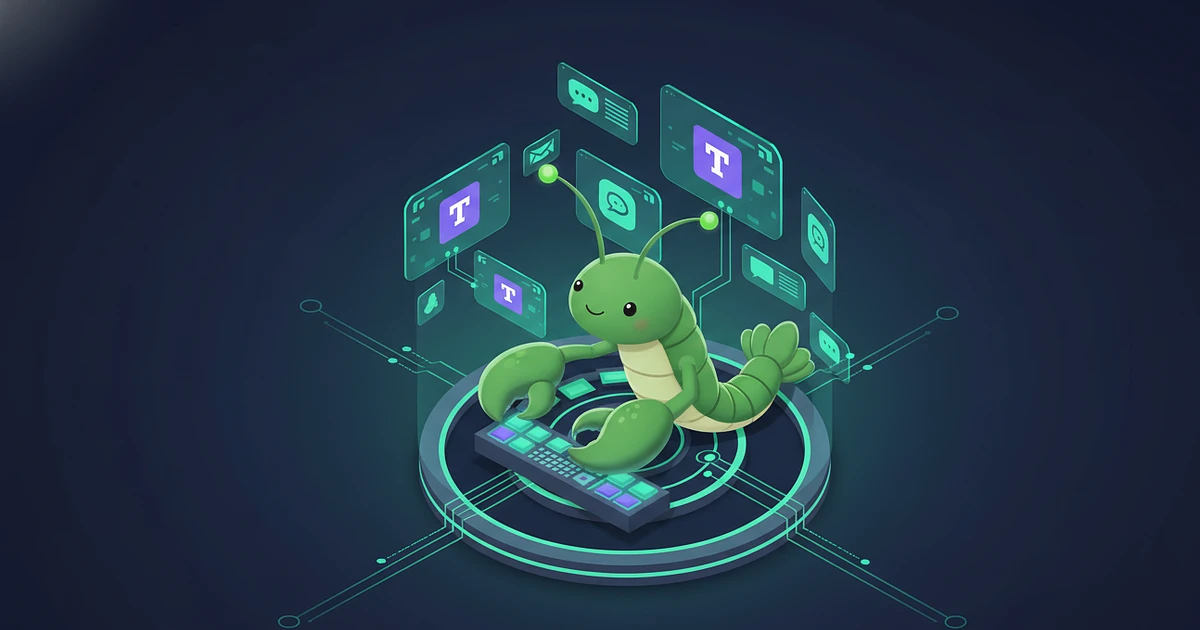
Microsoft 365 Copilot costs $30 per user per month. For a 50-person team, that's $18,000 a year before anyone sends a single prompt.
There's another way. OpenClaw connects your own LLM (Claude, GPT-4, Gemini, whatever you prefer) directly to Microsoft Teams. You control the model, you control the data, and you pay only for the tokens you actually use. According to SpeakWise's Teams statistics, 360 million people use Teams every month and 93% of Fortune 100 companies rely on it. Your AI agent should probably live where your team already works.
The v2026.3.24 release is a big one for Teams users. OpenClaw migrated from the deprecated Bot Framework SDK (which Microsoft officially retired on December 31, 2025) to the new Teams AI Library and Teams SDK.
What that means in practice:
Streaming replies in 1:1 chats. The bot types in real time instead of dumping a wall of text after thinking for 20 seconds.
Welcome cards with prompt starters. New users see suggested prompts when they first message the bot. Reduces the "what do I even ask?" problem.
Typing indicators. The bot shows the "typing..." bubble while generating a response, so people know it's working.
Native AI labeling. Teams automatically marks bot responses as AI-generated. No extra work on your end.
If you're on an older OpenClaw version, you'll want to update before attempting the Teams integration. The old Bot Framework path is gone.
The setup requires four things:
npm install @openclaw/msteams.I won't walk through every click (the OpenClaw Teams docs do that well), but here's the flow so you know what you're getting into.
Step 1: Install the plugin. Run npm install @openclaw/msteams in your OpenClaw directory.
Step 2: Create an Azure Bot resource. In the Azure Portal, create a new Azure Bot. This gives you three values: appId, appPassword, and tenantId. Copy them.
Step 3: Configure OpenClaw. Add a msteams block to your openclaw.json with those three values. Set replyStyle to either "thread" or "top-level" depending on how you want bot responses to appear in channels.
Step 4: Build and upload the Teams app manifest. OpenClaw generates a Teams app package (a .zip with manifest.json, two icons). Upload it through the Teams Admin Center or sideload it for testing.
Step 5: Approve users. This is where most people get stuck.
You installed everything. You message the bot in Teams. Nothing happens. No response, no error, just silence.
The default dmPolicy in OpenClaw is "pairing". That means the bot will not respond to any user until you explicitly approve them. It's a security feature (you probably don't want every person in your org burning through your API credits on day one), but it catches everyone off guard.
Fix it by running openclaw devices approve for each user, or set dmPolicy to "open" if you trust your org. In my experience, starting with "pairing" and approving users one by one is the safer move. You can always switch to "open" later.
Here's something that surprised me. Telegram and Slack integrations work because OpenClaw connects outward to their APIs. Your server doesn't need to be publicly reachable. Teams works the opposite way. Microsoft's servers need to call your OpenClaw instance via a public HTTPS endpoint.
If you're self-hosting, that means setting up a persistent public URL. Most people reach for ngrok or Cloudflare Tunnel, but those are fragile for production use. Ngrok free URLs change on restart. Tunnels drop connections.
With ClawHosters, every instance gets a permanent HTTPS endpoint from day one. No tunnel setup, no DNS juggling, no certificate renewals. Your Teams bot just works at https://your-subdomain.clawhosters.com. And since ClawHosters auto-updates your OpenClaw instance, you were already on v2026.3.24 before this blog post existed.
If you want to skip the infrastructure headaches entirely, deploy your first agent and have Teams connected in under an hour. Plans start at $19/month.
Teams doesn't tell the bot whether a channel uses threaded or flat conversation mode through the API. You have to set replyStyle manually in your config. Pick "thread" if your team uses reply threads, "top-level" if they don't. Get this wrong and bot responses show up in confusing places. There's no auto-detection. Just check how your team actually uses channels and match it.
Yes. Microsoft 365 Copilot is the official AI assistant for Teams. It costs $30 per user per month and uses GPT-4. OpenClaw is an alternative that lets you bring your own model and host the bot yourself or through a managed provider like ClawHosters. You only pay for tokens you use.
The standard channels tier of Azure Bot Service is free. You can connect to Teams, Slack, and other channels without paying Microsoft. Premium channels have separate pricing, but Teams is included in the free tier.
Yes. OpenClaw connects any LLM (Claude, GPT-4, Gemini, open-source models) to Teams through the Azure Bot Service. You don't need a Microsoft 365 Copilot license. You need an Azure account (free tier works) and an OpenClaw instance with the msteams plugin installed.
The most common cause is the default `dmPolicy` setting. OpenClaw ships with `dmPolicy: "pairing"`, which means the bot ignores all messages from unapproved users. Run `openclaw devices approve` to approve users, or change the policy to `"open"` in your config. Also verify your HTTPS endpoint is publicly reachable.
*Last updated: March 2026*
Three open-source AI agent frameworks launched within two weeks of each other in early 2026. All three have the word "Claw" in the name. All three let you run your own AI assistant. And all three make completely different bets about what matters most.

Your OpenClaw agent reads, writes, searches the web, calls tools. But it can't hear you. And it can't talk back. Voice changes that, and it's not as complicated as you'd think.

Port forwarding your AI agent to the public internet is a terrible idea. OpenClaw has broad access to your system, shell, files, network, and it eagerly reaches out to external APIs. Exposing that to the open web is asking for trouble. Tailscale gives you encrypted remote access to your OpenClaw...
